How to Use a WhatsApp Group Poll Bot with Erfan MD
By Erfan Ahmed | Last tested and updated: 23 November 2026.
A WhatsApp group poll bot can help administrators manage group interactions, but its commands must be distinguished from WhatsApp’s native controls. Erfan MD lists .poll and .link; the exact arguments and link-management actions need live verification. This guide explains the verified commands, native alternatives, and safe administration steps.
Erfan MD is an independent third-party WhatsApp bot project. It is separate from WhatsApp and Meta; neither company operates the project.
- Poll command:
.pollappears in the Erfan MD command examples, but its complete syntax and separators need a private-group test. - Invite-link command:
.linkis listed, but do not assume it fetches or revokes an invite link without checking its live behaviour. - Native poll controls: WhatsApp provides its own poll composer, including settings for multiple answers and hiding voter names.
- Join approvals: WhatsApp group administrators can enable the native
Approve new memberssetting and review pending requests. - Safety: Share invite links only with people you trust, and reset a link through WhatsApp when it has been shared too widely.
Creating a WhatsApp group poll with Erfan MD
Erfan MD lists .poll as a group-related command, so it is a recognised entry point for poll functionality. However, the complete argument format, separator characters, and supported poll settings must be checked in a private test group. Use WhatsApp’s native poll composer when you need a confirmed poll workflow.
Exact verified command syntax and separator characters
The verified command example is .poll. The command name alone does not establish how to supply a question, separate answer options, or configure voting behaviour.
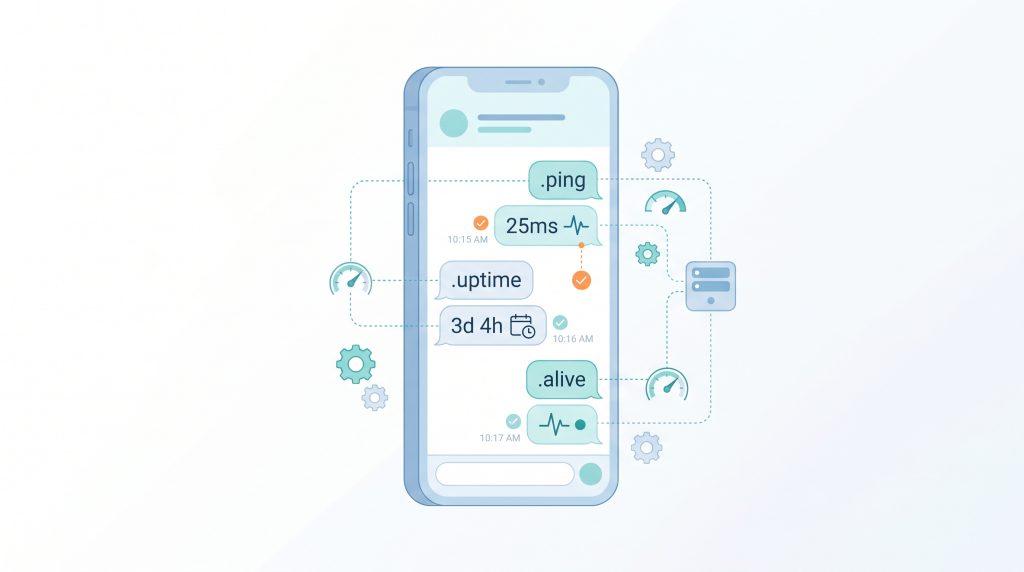
Start by sending .menu to display the available command categories. Check the poll entry against the live instructions before supplying arguments. Do not copy a comma-separated, pipe-separated, or semicolon-separated format from another bot and assume Erfan MD interprets it the same way.
For the command reference and related syntax guidance, use the Erfan MD command menu guide and the WhatsApp bot command syntax guide.
Practical verification workflow:
- Use a private test group. This keeps an untested command away from your main community.
- Confirm the bot is present. Check its group membership and administrative status before testing group-management functions.
- Inspect the live command instructions. Use the command menu and the guidance displayed for the poll feature rather than guessing the argument order.
- Test a simple question. Use a harmless question with clearly different answer options.
- Check the resulting poll. Confirm that the question and options appear as intended before using the feature in a real group.

Tested option limits and native WhatsApp poll voting visibility
WhatsApp’s native poll composer has documented limits and voting controls. These apply to polls created through WhatsApp’s own interface; they should not be treated as verified limits for the Erfan MD .poll command.
| Native WhatsApp poll setting | What it controls | Practical decision |
|---|---|---|
| Question length | Up to 255 characters | Keep the question focused and easy to understand. |
| Answer options | Up to 12 options, with each option limited to 100 characters | Use distinct, concise choices. |
| Allow multiple answers | Controls whether a participant can select more than one option | Enable it for multiple selections; turn it off for a single-choice poll. |
| Hide voter names | Hides who voted for which option | Enable it when voter identities should not be visible. |
WhatsApp provides a Hide voter names setting in its native poll options. When enabled, nobody, including the poll creator, can see who voted for which option. Do not describe an Erfan MD-generated poll as anonymous unless you have tested that specific behaviour.
To create a native poll, open the group conversation, select the attachment option, choose Poll, enter your question and answer options, review the available settings, and send it to the group. See WhatsApp’s poll instructions for its native controls.
Managing WhatsApp group invite links safely
Erfan MD lists .link among its commands, but the command listing alone does not establish whether it retrieves, creates, resets, or revokes an invite link. WhatsApp provides a native invite-link workflow that group administrators can use to copy a link and reset it when necessary.
Fetching and revoking or resetting invite links
Use WhatsApp’s own group information screen when you need a dependable way to manage an invitation link:
- Open the group. Select the WhatsApp group conversation whose invitation you want to manage.
- Open group information. Select the group name to access its details.
- Open the invitation controls. Choose Invite via link or QR code.
- Copy the link when appropriate. Select Copy link to share the invitation with intended members.
- Reset a shared link when necessary. Select Reset link, then confirm Reset link again.
WhatsApp states that a group administrator can deactivate an existing invite link and create a replacement. After a reset, the previous link cannot be restored. A person using the old link must obtain the replacement invitation from an administrator.
The native reset process is separate from Erfan MD’s .link command. Do not describe the bot command as a reset or revocation command until that action has been tested.
Safe sharing rules for private group links
A group invite link is an access route, not just an ordinary message. WhatsApp warns that anyone who has the link can join the group and forward the invitation to other people. Share it only with intended participants and avoid posting private community links in public spaces.
- Send the invitation directly to people who are expected to join.
- Do not publish a private group link on public pages or unrelated group conversations.
- Review unexpected membership activity and pending requests.
- Reset the link when it has reached people outside the intended audience.
- Distribute the replacement link only to trusted participants.
For broader group controls, see the Erfan MD WhatsApp group administration guide.

Handling WhatsApp group join requests
WhatsApp can require administrator approval before a person joins a group. Its native Approve new members setting controls this process, and administrators can review pending requests. The supplied Erfan MD command examples do not establish bot commands for listing, approving, or rejecting those requests.
Listing, approving, or rejecting pending requests through tested controls
Do not invent commands such as .approve, .reject, or .requests and assume that Erfan MD supports them. None of those commands appears in the verified command examples supplied for this guide.
Use WhatsApp’s native group controls to review membership requests:
- Open group information. Enter the group conversation and select its name.
- Check the approval setting. Open Group permissions and inspect Approve new members.
- Review pending requests. When approval is enabled and requests are pending, a group administrator can review them through WhatsApp.
- Make the membership decision. Use the controls WhatsApp displays to accept or decline each request.
- Recheck group membership. Confirm that the resulting group member list reflects the decision.
Keep the review under the control of a trusted administrator. An invitation link and an approval request are different things: sharing a link does not establish that an applicant has already been approved.
Using WhatsApp’s native approval setting
The native approval setting determines whether people can join without an administrator reviewing their request. When Approve new members is enabled, administrators must approve people who want to join the group. When it is disabled, the group is open to people joining without that approval step.
To check the setting, open the WhatsApp group, select its name, choose Group permissions, and inspect Approve new members. The exact wording and screen layout may vary across WhatsApp interfaces, so use the setting shown in your own app.
Read WhatsApp’s group administration settings guidance for its explanation of participant approval and other group permissions.
Troubleshooting poll and invite-link command failures
When a poll or invite-link action fails, separate a command-format problem from a WhatsApp permission or link problem. Check the command name, its live instructions, the bot’s group role, and the native group settings before repeating an action. This avoids treating every failure as a server outage.
Separator errors, bot admin status, and revoked links
Use this table to identify the likely cause and choose a safe next step. The checks distinguish general Erfan MD command guidance from native WhatsApp behaviour.
| Mistake | Why it matters | What to do |
|---|---|---|
| Guessing commas, pipes, or semicolons in a poll command | The bot may not interpret the question and options as intended. | Check the live poll instructions and test the exact format in a private group. |
Assuming .link automatically resets an invite link | The command’s listing does not establish that it performs a reset. | Use WhatsApp’s Reset link control unless the bot action has been verified. |
| Ignoring the bot’s group role | Most Erfan MD group commands require the bot account to hold group administrator status. | Check the bot’s role when a group-management command fails. |
| Sharing a link after an administrator has reset it | The previous invite link cannot be restored after a reset. | Obtain and distribute the replacement link. |
| Posting a private invitation publicly | Anyone with the link can join and forward it. | Share links only with intended participants and reset an exposed link. |
| Assuming a join request is automatically approved | WhatsApp’s approval setting requires administrator review. | Review pending requests using WhatsApp’s group controls. |
One distinction helps narrow the problem: a command may be recognised while its arguments are incorrect. Start with .menu to view command categories, then check the relevant live instructions rather than repeatedly trying different separators.
Checking group permissions and related failures
When a group command does not work, check whether the bot account has the permissions needed for that operation. Most Erfan MD group commands require group administrator status, although that general rule should not be treated as proof that every individual command has the same requirement.
Also check whether the problem concerns a link that an administrator has reset. A previously distributed link will not become valid again simply because someone sends it a second time.
For adjacent group-management issues, use the Erfan MD anti-link setup guide and the group welcome and goodbye automation guide. These cover separate group features rather than establishing additional poll or invite-link commands.
Limits and what can change
This guide distinguishes verified Erfan MD command names from WhatsApp’s native group controls. Bot behaviour depends on the remote service and its hosting infrastructure, while WhatsApp controls its own interface, poll settings, and membership approvals. A change in one system does not automatically establish a change in the other.
Erfan MD runs the remote server that the linked WhatsApp account connects to during an active session. The server enables the bot to read and respond to commands, so review the Erfan MD Privacy Policy for information about session and server data processing and logging.
Use the bot only with an account you own and in groups where you have permission to manage its activity. Message people who expect to hear from you, keep private group invitations within the intended audience, and do not present third-party automation as a WhatsApp feature.
WhatsApp may change its group interface, poll controls, or membership settings. Erfan MD’s remote service may also change its available commands or behaviour. Recheck the live command instructions and the relevant WhatsApp settings before relying on a workflow described here.
Frequently asked questions
The answers below separate the Erfan MD commands listed in the product information from actions available through WhatsApp itself. This distinction matters when you need a reliable poll, a replacement invite link, or a decision about a pending member request without assuming an untested bot capability.
What is the exact format to create a poll in Erfan MD?
The verified command name is .poll, but the complete argument format and separator characters need a live test. Use .menu to display command categories, then verify the poll instructions in a private test group before using the command with a real community.
Are polls created by Erfan MD anonymous?
Do not assume that an Erfan MD poll hides voter identities. WhatsApp’s native poll composer provides a Hide voter names setting that hides who voted for each option when enabled. Test the Erfan MD poll behaviour separately before describing it as anonymous.
Does Erfan MD need group-admin rights to generate or reset an invite link?
The .link command is listed, but its exact actions and permission requirements need live verification. Most Erfan MD group commands require the bot account to hold group administrator status. For WhatsApp’s native invite-link reset, a group administrator can use Reset link in the invite-link settings.
Can Erfan MD automatically approve every group join request?
The supplied command examples do not establish an Erfan MD command for automatically approving join requests. WhatsApp’s native Approve new members setting requires administrators to review and approve people who want to join. Do not assume that enabling this setting creates automatic approval.
Why did my poll command fail to split my answer options?
The command may have received arguments in a format it did not interpret as intended. Check the live command instructions and use the specified separator rather than trying a delimiter from another bot. Confirm the result in a private test group before repeating the action elsewhere.
Is Erfan MD part of WhatsApp or Meta?
No. Erfan MD is an independent third-party project that operates separately from WhatsApp and Meta. WhatsApp and Meta do not operate the bot, and WhatsApp’s own group controls remain separate from Erfan MD’s command features.
Next steps
Use the following steps to move from checking the available commands to managing a group safely. Keep untested actions in a private test group, use WhatsApp’s own controls for membership decisions, and consult the relevant Erfan MD documentation when you need to configure a separate group feature.
- Send
.menuand review the available command categories before testing.pollor.link. - Check the Erfan MD features overview to distinguish available bot features from native WhatsApp controls.
- Test poll creation and link behaviour in a private group before using those commands in a real community.
- Review invite-link sharing and pending membership requests through WhatsApp’s group settings.
- Keep your group-management instructions aligned with the wider Erfan MD documentation and privacy guidance.
About this guide
This guide was written by Erfan Ahmed, founder of Erfan MD, who has a software development background and is based in Pakistan. For support, contact company@explorefrag.com. Last tested and updated: 23 November 2026.