


WhatsApp Bot Command Syntax for Erfan MD: Dot Prefix, Arguments and Error Fixes
By Erfan Ahmed | Last tested and updated: 23 November 2026.
Erfan MD uses the dot (.) as its command prefix: type the dot immediately before the command name, with no space, then add one space before any required text. For media commands that require an input message, reply to that media first. Erfan MD is an independent third-party WhatsApp bot project, separate from WhatsApp and Meta.
- Use
.menuto display available command categories and check command names. - Never insert a space between the prefix and command name: use
.menu, not. menu. - For text arguments, place one space after the command name and follow the required argument order.
- For media commands that require a message reply, reply to the relevant image or media message before sending the command.
- Check the active prefix, command spelling, chat type, and permissions before retrying a failed command.
How the Erfan MD dot prefix (.) works
Erfan MD reads a command when the configured prefix appears immediately before the command name. The default shown in the connection confirmation is a dot (.), so type .menu, not . menu; add one space only after the command name when the command requires text input. The prefix separates bot instructions from ordinary chat.
Why a prefix marker is required before every command
A prefix tells the bot that your message is an instruction rather than an ordinary WhatsApp message. Without the marker, a command name sent as plain text does not follow the bot’s command format.
For example:
- Correct:
.menu - Incorrect:
menu - Incorrect:
. menu
The dot must touch the command name. Do not insert a space, line break, or other character between them.
After a successful connection, Erfan MD sends a confirmation message showing the prefix . and mode public. You can then send .menu to display the available command categories.
The public bot lists over 800 commands covering AI, coding, groups, image and sticker tools, search and media, settings, utilities, status, owner, and administration. Use the Erfan MD command menu guide to understand how the command categories are organised.
Checking whether the live prefix has been changed from .
The connection confirmation displays the dot prefix. However, the bot also lists .prefix among its core-settings commands, so you should check the bot’s own instructions rather than assume that the original prefix remains unchanged.
Use these checks:
- Read the connected confirmation message and identify the displayed prefix.
- Send
.menuusing the prefix shown in the confirmation. - Check the live command instructions for the
.prefixsetting before attempting a change. - After changing a setting, verify the accepted prefix from the bot’s response before sending more commands.
Do not guess the replacement symbol or argument format. An incorrect setting command can make subsequent commands difficult to recognise.

Command structure: text arguments, quoted replies, and media
A command combines the active prefix, the exact command name, and any input that command requests. For text input, place one space after the command name and then supply the required text; for media input, reply to the message containing the media when the command’s instructions call for a reply.
Standard text-argument commands
The basic structure is:
- Enter the active prefix.
- Type the command name immediately after it.
- Insert one space after the command name when text input is required.
- Enter the requested text or other arguments in the order specified by the command instructions.
- Send the completed message in the appropriate chat.
For example, .menu is a complete command that displays the available categories. It does not need an additional text argument.
Commands such as .ai, .grammar, and .poll are also listed examples. Check their individual instructions in the live menu before adding text or other input. Do not assume that every command accepts the same argument format.
The following table provides a quick reference for choosing the correct input method.
| Input type | Correct approach | What to check |
|---|---|---|
| No additional text | Send the prefix immediately followed by the command name, as in .menu. | Check whether the command requires additional input. |
| Required text | Place one space after the command name, followed by the requested text. | Follow the exact argument order in the command instructions. |
| Image or media input | Reply to the relevant media message and send the required command in that reply. | Check that the command supports reply-based media input. |
| Settings input | Follow the instructions provided for the relevant settings command. | Check the active prefix and accepted setting format. |
Reply-to-message and image-caption input rules
Some media operations require the bot to receive the original media message as context. In that situation, replying to the image or media message connects your command to the intended input instead of sending an unrelated standalone instruction.
Use this workflow:
- Locate the image or media message you want the bot to process.
- Use WhatsApp’s reply function on that specific message.
- Enter the media command using the prefix and command spelling shown in the live menu.
- Send the reply and check the bot’s response.
Do not assume that an image caption and a quoted reply are interchangeable. When the command instructions require a reply, use WhatsApp’s reply function on the actual message containing the media. When the command requests text, follow its stated text-input format.
For a practical example of media-related commands, see the Erfan MD sticker maker command guide.

Fixing command not recognised and usage errors
An unrecognised-command or invalid-usage response usually calls for checking the command’s spelling and required input before trying again. Compare your message with the live .menu entry, confirm the active prefix, and check whether the command belongs in a private chat or group with the necessary permissions.
The five-point syntax checklist
Before retrying a failed command, work through these five checks in order.
- Prefix: Confirm that you used the active prefix. The default shown in the connection confirmation is
.. - Exact spelling: Compare the command name with its entry in
.menu. Do not substitute a remembered alias without checking it. - Spacing: Keep the prefix directly next to the command name. Add a space after the command name only when the command requires additional input.
- Required input: Check whether the command needs text, another argument, or a reply to an image or message.
- Chat context: Confirm that you are using the command in the correct private or group chat and that the bot has the required permissions.
Wrong vs. Right Command Syntax: six common mistakes
These six mistakes cover common ways a command can depart from the required format. Each correction shows what to change before another attempt, helping you distinguish a formatting problem from a missing input, outdated command name, or permission issue.
| Mistake | Why it matters | What to do |
|---|---|---|
Space after the dot: . menu | The prefix is separated from the command name. | Remove the space and send .menu. |
Missing prefix: menu | The message is missing the command marker. | Add the active prefix directly before the command name: .menu. |
| Wrong argument order | The command may receive its inputs in an order different from the required format. | Put the command immediately after the prefix, then follow the exact argument sequence shown in its live instructions. |
| Missing quoted reply for media | The command may not receive the image or media message it needs as input. | Reply to the original media message and send the relevant media command in that reply. |
| Outdated alias spelling | A remembered command name may differ from the name displayed in the live command menu. | Copy the current command spelling from .menu and place the active prefix immediately before it. |
| Wrong chat type | A command may require a particular chat context or group permissions. | Use the chat context specified by the command instructions. For group commands, check whether the bot account needs group administrator status. |
Reading parser error responses without spamming retries
Read the complete response before sending another command. An unrecognised-command message calls for checking the prefix and command name first, while an invalid-usage response calls for checking required arguments, their order, and any reply-based input.
Use the response as a diagnostic rather than repeatedly changing random characters. A sensible troubleshooting sequence is:
- Stop sending repeated variations of the same command.
- Compare the command name with the live menu.
- Check whether the prefix matches the bot’s active setting.
- Review the required input and chat context.
- Make one corrected attempt and read the complete response.
If the command exists but does not respond to another participant, check the bot’s operating mode. In public mode, it replies to anyone; in private mode, it replies only to the account owner. These access rules are separate from command spelling.
For more information, read the Erfan MD public and private mode guide.
Safe syntax testing without disrupting chats
Test syntax in a private chat with commands that display information before trying commands that affect settings or groups. This isolates formatting from group permissions and reduces the chance of tagging members or changing chat behaviour while you are only trying to diagnose a command.
Testing read-only commands in a private chat first
Start with the command menu and status-oriented commands rather than commands that modify settings or interact with group members.
Useful examples from the command list include:
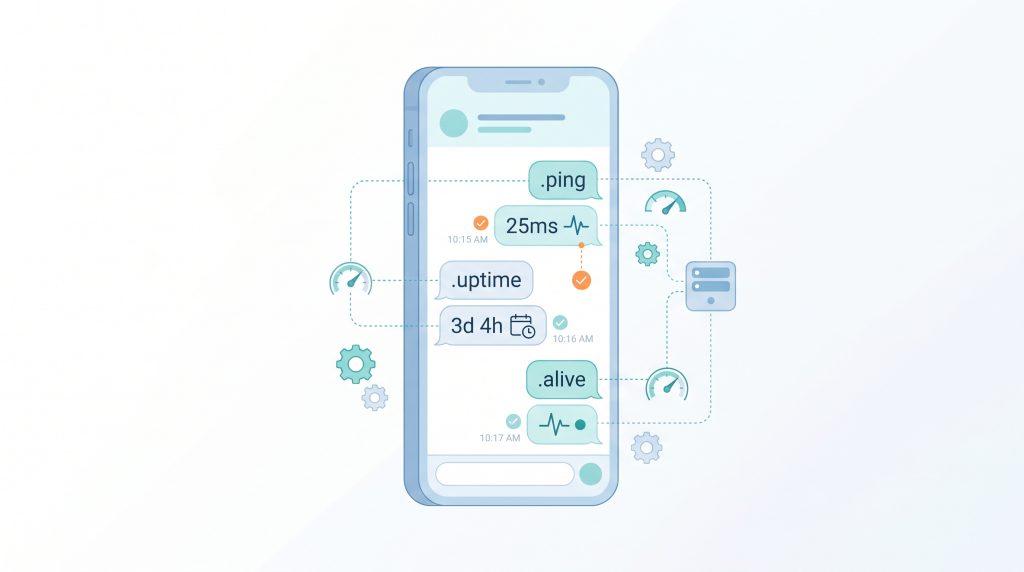
.menuto display the available command categories..pingas a status-oriented command..uptimeas another status-oriented command.
These examples help you establish whether the bot recognises the basic command format. Check their live instructions before using additional arguments.
Testing in a private conversation also removes some group-related variables. When troubleshooting, change one thing at a time so that you can identify whether the issue comes from the prefix, command name, input, or chat context.
Avoiding untested owner or administrative commands
Do not experiment with commands that affect settings, members, group access, or administrative behaviour simply to see whether the parser accepts them. Commands such as .tagall, .mode, and other management-related commands should be used only when you understand their purpose and have the necessary permissions.
Most group commands require the bot account to hold WhatsApp group administrator status. Therefore, a command that is correctly formatted may still fail to perform its intended group operation when the bot does not have the required role.
Check the target group’s permissions before diagnosing an administrative restriction as a syntax error. Keep tests limited to chats and accounts you control, and use commands only in ways that respect the expectations of other participants.

Limits and what can change
The guide describes Erfan MD’s dot-prefix workflow, not the syntax of every WhatsApp bot or every command available on a remote server. WhatsApp, the bot service, server capacity, and command instructions can change independently, so verify the live menu and follow WhatsApp’s own account-safety guidance before linking.
There are three separate parts to the Erfan MD service:
- Website: Provides documentation and guides.
- Pairing tool: The homepage form generates a WhatsApp pairing code.
- Bot: Handles recognised commands inside WhatsApp during an active linked session.
A problem with one component does not automatically mean the other components are unavailable. For example, a documentation page loading successfully does not establish that the remote bot server is responding to commands.
Erfan MD runs the remote server to which your WhatsApp account connects. During an active session, the bot can read and respond to commands. Consult the Erfan MD Privacy Policy for information about session and server data processing.
The pairing flow does not request your WhatsApp password. However, any linked device can receive messages on your account, so link only a service you trust. WhatsApp’s guidance about unsupported third-party apps explains the potential security risks and account restrictions associated with their use.
You can unlink a connected service through WhatsApp’s Linked Devices settings. Remember that a change to WhatsApp, the remote bot service, or its hosting infrastructure can affect how a previously working command behaves.
Frequently asked questions about WhatsApp bot command syntax
These answers cover the most common questions about Erfan MD’s command prefix, text arguments, media replies, and command-recognition errors. Use the live command menu as your reference when a command name or input format differs from one you previously used.
Should I put a space between the dot (.) and the command name?
No. Place the dot directly before the command name, without a space. For example, .menu follows the correct format, while . menu separates the prefix from the command.
Are Erfan MD commands case-sensitive?
Use the exact command spelling displayed in .menu, including its capitalization. Do not assume that an alternative spelling or capitalization will work. Check the displayed command name before troubleshooting permissions or server availability.
How do I pass an image or message to a command that needs media?
Reply directly to the WhatsApp message containing the image or media, then send the relevant command in that reply. This gives a reply-based command the intended message as its input. Follow the command’s own instructions when it requests additional text.
Why does Erfan MD say my command is unknown even though I saw it online?
The command may have an incorrect prefix, a different spelling, or an outdated alias. Erfan MD is a separate third-party project and is not operated by WhatsApp or Meta, so check the command name in its live .menu rather than relying on a command list from another source.
Can I change the dot prefix to another symbol?
Erfan MD lists .prefix among its core-settings commands. Check the live instructions for that command before attempting a change, and verify the resulting prefix from the bot’s response. Do not guess the accepted replacement symbol or argument format.
Next steps
Once your syntax is correct, use the available documentation to check command availability, permissions, and account setup. These resources help you move from a basic command test to the relevant feature without treating every unsuccessful response as a formatting problem.
- Open the complete Erfan MD command menu guide to find the relevant command category.
- Read how Erfan MD works to understand the website, pairing tool, and bot workflow.
- Review the public and private mode instructions before testing commands with other participants.
- Visit the Erfan MD frequently asked questions page for additional setup and troubleshooting guidance.
About this guide
This guide was written by Erfan Ahmed, founder of Erfan MD, with a software development background and based in Pakistan. It explains the project’s command syntax and troubleshooting workflow for international WhatsApp users. For support, contact company@explorefrag.com. Last tested and updated: 23 November 2026.



1 comment