WhatsApp Bot Not Responding: Erfan MD Master Diagnostic & Reconnection Checklist
By Erfan Ahmed | Last tested and updated: 23 November 2026.
When a WhatsApp bot stops responding, check the linked session first, then confirm the command prefix and test .menu. If only group commands fail, inspect the bot account’s group-admin status; if only AI commands fail, isolate the AI command path. Erfan MD is an independent third-party WhatsApp bot project, separate from WhatsApp and Meta.
- Check WhatsApp Linked Devices before requesting another pairing code.
- Use the prefix shown in the bot’s connection message, then test
.menuand.ping. - For group failures, check the bot account’s admin status and whether private mode restricts replies to the account owner.
- If basic commands work but an AI command fails, investigate the AI command separately instead of immediately reconnecting.
Scenario 1 — Bot ignores every command
Start by separating the WhatsApp link, command syntax, and remote bot service. A silence across every chat can come from a missing linked session or an incorrect prefix; if those checks pass, compare a basic command with the one that failed before treating the issue as a service outage.
Separate message delivery, prefix parsing, and server availability
Erfan MD has three separate parts: the website, the pairing tool, and the bot. The website provides documentation, the homepage pairing form generates a connection code, and the bot responds to commands inside WhatsApp. A problem with one part does not automatically mean the other two are unavailable.
Use the following checks to identify which part needs attention:
| Check | What it establishes | What it does not establish |
|---|---|---|
| Website pages load | You can access the documentation and guides. | It does not prove that your WhatsApp session or the remote bot service is responding. |
| Pairing form is accessible | You can use the form to request a pairing code. | It does not prove that an account is linked or that commands will receive replies. |
| Linked device is visible and a basic command responds | The WhatsApp link is visible and the bot is responding to that command. | It does not prove that every group or AI command will work. |
Check the bot’s connection confirmation message for the active command prefix. The initial confirmation shows ., but the prefix is adjustable, so do not assume the dot is still correct if you changed the setting.
Run a benign baseline check before assuming an outage
Run these checks in a private chat with the linked account before testing a specialised command:
- Check the prefix. Use the prefix shown in the bot’s connection confirmation. This prevents a valid command from being sent with the wrong starting character.
- Send
.menuusing that prefix. The menu displays command categories, giving you a basic test of command recognition and a way to inspect available commands. - Try
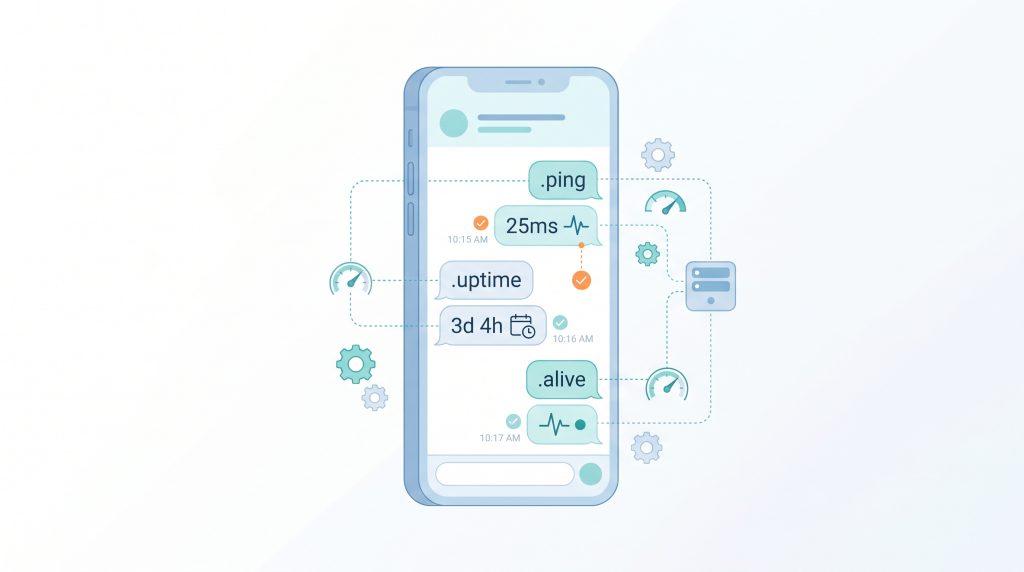
.ping. This is another confirmed command example. Record the actual response rather than assuming a particular output message. - Compare the results. If a basic command responds but one specialised command does not, investigate that command’s category, requirements, or service path instead of immediately replacing the WhatsApp connection.
The .prefix, .botname, and .mode commands adjust core settings. Check the Erfan MD command syntax and prefix guide before changing command syntax or assuming that every command starts with a dot.

Scenario 2 — Bot session disconnected
An absent Erfan MD entry in WhatsApp Linked Devices means the account is not showing a linked session for that service. Inspect this screen before opening the pairing form; when reconnection is needed, generate a code, enter it in WhatsApp, and wait for the connected confirmation rather than submitting repeated requests.
Check WhatsApp Linked Devices to confirm whether the session dropped
Open WhatsApp and follow this exact path:
- Open Linked Devices.
- Choose Link a Device.
- Look for the Erfan MD linked session in the device list.
If the entry is visible, WhatsApp still displays that linked device. Test a basic bot command before generating another code. A visible device entry and a working bot response are separate checks because the bot depends on a remote server during an active session.
If the Erfan MD entry is absent, the account is not showing that linked session. If an old session is one you no longer trust or intend to use, you can remove it from Linked Devices. WhatsApp lets you unlink a device from this screen.
Reconnect safely without submitting repeated pairing requests
Use the same homepage pairing form for the WhatsApp Bot and WhatsApp Mini Bot setups. Follow the steps in order so you do not confuse a new pairing request with an existing linked session.
- Choose a server. Check the server selection and its displayed active-slot information before continuing. The form shows active slots and a counter out of 50.
- Enter your full phone number. Include the country calling code, use digits only, and do not add a plus sign. The site examples are Pakistan
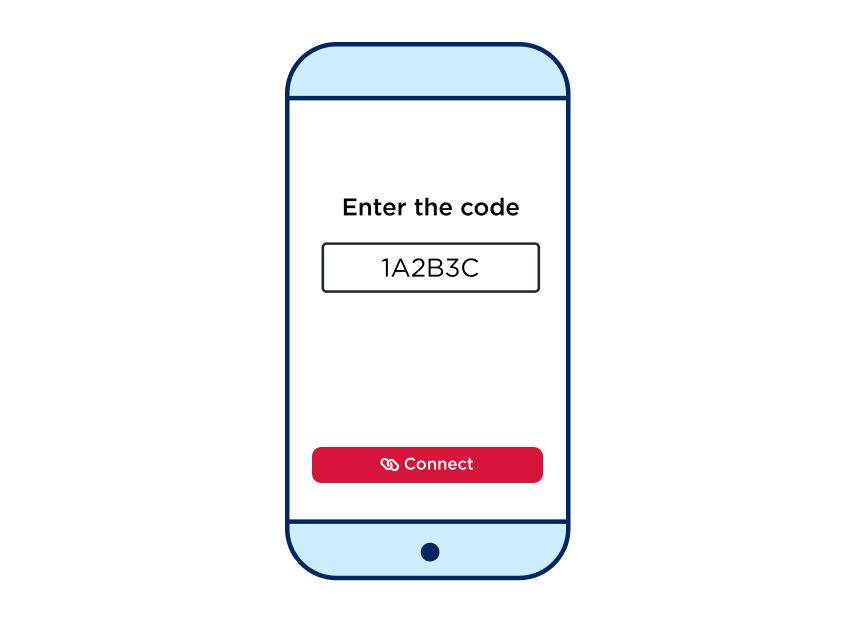
923001234567, United States12025550123, and United Kingdom447700900123. - Generate one code. Press Generate WhatsApp Pairing Code. The form displays an eight-character code and a Copy Code button.
- Use the displayed code yourself. In WhatsApp, open Linked Devices, choose Link a Device, select Link with phone number instead, and enter the code. This method does not require a QR scan and works on Android and iPhone.
- Respect the form’s wait. The pairing form requires a 30-second wait before you generate another code. Do not submit rapid or parallel requests when one request is already in progress.
- Check the connection message. After linking, the bot sends a connected confirmation showing the prefix
.and modepublic. - Test the bot. Send
.menuusing the displayed prefix. This checks whether the linked account can reach the bot’s command interface.
The pairing flow does not ask for your WhatsApp password. Never send a pairing code or verification code to another person. A linked device can receive messages on your WhatsApp account, so connect only a service you trust.
For the full connection sequence and confirmation checks, use the guide to confirming an Erfan MD connection after pairing.
Scenario 3 — Group commands fail while private chat works
When commands work in a private chat but fail in a group, troubleshoot the group setup before reconnecting the entire account. Confirm that you are using the intended group, that the bot account is a group member, and that it has WhatsApp group-admin status; most group commands require that status.
Verify group context, sender role, and bot admin status
First, check whether the failed command is intended for a group. Examples of confirmed group-related commands include .tagall, .poll, .welcome, and .goodbye. Use .menu to inspect the available command categories instead of assuming that every command works in every chat.
Next, check the bot’s mode. Public mode replies to anyone, while private mode replies only to the account owner. If another group participant sends a command while the bot is in private mode, the mode setting can explain why that person does not receive a reply.
The .mode command adjusts this setting. Review the public and private mode explanation before changing access behaviour.
Check group-admin status and native WhatsApp restrictions
Most group commands require the bot account to hold WhatsApp group-admin status. Open the group’s native administration controls and check the bot account’s role. If it does not have the required status, ask an existing group administrator to review whether granting that role is appropriate.
Use this comparison to avoid changing the wrong setting:
| Observed result | What to inspect | Appropriate action |
|---|---|---|
| Private commands and group commands both fail | Linked Devices, prefix, and basic command response | Return to the general checklist before changing group permissions. |
| Private commands work, but group commands fail | Group membership and bot admin status | Check the bot account’s group role and the command’s requirements. |
| Owner gets replies, but another participant does not | Public or private mode | Check whether private mode is restricting replies to the account owner. |
| One group command fails, but another works | The failed command’s category and requirements | Inspect the menu and the relevant command guide before changing the whole session. |
Do not try to bypass WhatsApp group controls. If a command requires an administrator role, use the group’s normal permission process or choose a command that fits the existing permissions. The Erfan MD group administration guide explains the group setup checks.
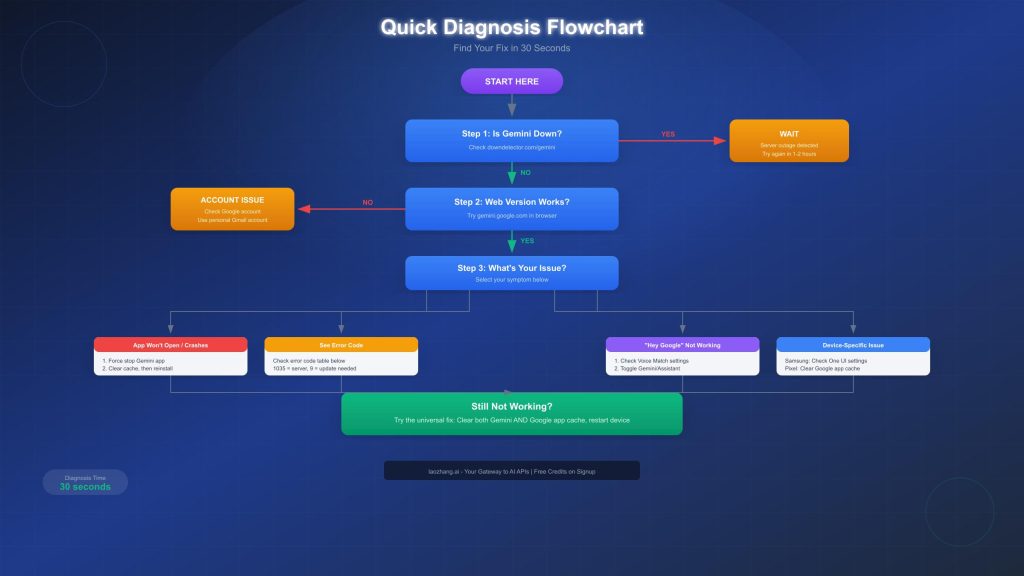
Scenario 4 — AI commands fail while basic commands work
If .menu and a basic command respond but an AI request fails, isolate the AI command path instead of rebuilding the WhatsApp link. Erfan MD’s AI commands may route requests through third-party AI services, so an AI-only error can have a different cause from a disconnected WhatsApp session.
Separate command-alias, request, and service errors
Start with the exact command name shown by the bot. The site includes .ai among its confirmed command examples, but the menu is the practical place to inspect the available command categories before trying another alias.
Do not assume that an alias has been removed because one request fails. A failed request alone does not establish whether the cause is command syntax, the content of the request, or the remote AI service.
If the error message specifically identifies the request as too long, try a shorter request and record the resulting message. Do not assume an undocumented character limit or invent a new command syntax.
Use a verified active AI command
Send .menu and inspect the AI category. Use a command name displayed there rather than copying an old alias from an unrelated guide. Then compare its result with a basic command such as .ping.
If basic commands respond but the listed AI command continues to return an error, record the exact command name and redacted error text. AI commands may depend on services outside the WhatsApp session, so repeatedly pairing the account is not a reliable way to diagnose an AI-only problem.
A provider name appearing in a command alias is a label for that command; it does not establish a relationship between Erfan MD and that provider. For more command examples and AI-specific guidance, consult the AI WhatsApp bot command guide and the Gemini command alias guide.
What to share — and never share — when contacting support
Support can investigate more effectively when you provide the failing command, approximate local timestamp, whether basic commands respond, the Linked Devices status, and a redacted error message. Keep the report limited to diagnostic facts; never send pairing codes, one-time passwords, private chat contents, or participants’ phone numbers.
Share safe diagnostic information
Use a short report containing the following details:
- Time: The approximate date and local time when the failure occurred.
- Command: The command name you sent, without including private message content.
- Chat context: State whether you tested in a private chat or a group.
- Baseline results: Say whether
.menuand.pingresponded. - Connection check: State whether the Erfan MD entry appears in WhatsApp Linked Devices.
- Error details: Include the visible error wording after removing phone numbers, names, message contents, and codes.
You can contact support at company@explorefrag.com. A concise diagnostic report helps distinguish a connection issue from a command-specific or AI-related failure.
Never share pairing codes, OTPs, private chat logs, or participant phone numbers
Do not send a live pairing code, WhatsApp verification code, OTP, password, private conversation, or unredacted participant list to support or anyone else. Do not publish screenshots that reveal those details. A screenshot should show only the relevant setting or error, with account identifiers and private information removed.
WhatsApp’s Help Center explains that unofficial third-party apps are unsupported and may expose accounts to security risks or restrictions. Review WhatsApp’s guidance on unsupported third-party applications before linking an account. WhatsApp controls account restrictions; do not try to bypass them.
Frequently asked questions
Most no-response problems can be narrowed down by checking the linked device, command prefix, and a basic bot command before changing settings. Group-only failures need a permission check, while AI-only failures need a separate command and service check. The answers below explain what each symptom does and does not establish.
Why did Erfan MD suddenly stop replying in all my chats?
Check WhatsApp Linked Devices first to see whether the Erfan MD session is still listed. If it is listed, test the current prefix with .menu and then try .ping. If the device is absent, follow the safe reconnection steps rather than repeatedly submitting pairing requests.
Should I keep submitting new pairing requests if the bot goes silent?
No. Check Linked Devices before generating another code. If you need to reconnect, make one request, use the displayed code yourself, and respect the form’s required 30-second wait before generating another code.
Why do Erfan MD group commands fail when private commands work fine?
Most group commands require the bot account to hold WhatsApp group-admin status. Also check whether the bot is in private mode, which restricts replies to the account owner, and confirm that the command is intended for group use.
Why does an AI command return an error while .menu still replies?
A working .menu response shows that the bot can still respond to that basic command, but it does not prove that the AI command path is working. Inspect the AI category for the available command name, compare the error with a basic command, and record the redacted error if the AI request still fails.
How do I know if the problem is my phone or the Erfan MD server?
Start with WhatsApp Linked Devices and a basic command. If the linked entry is absent, investigate the connection; if it is visible but basic commands fail, the remote bot service may need investigation. These checks narrow the problem but do not independently prove which infrastructure component caused it.
Limits and what can change
These checks help isolate likely failure points, but they cannot guarantee that the remote bot service or an external AI service is reachable. The website, pairing form, and active bot session are separate parts; WhatsApp and remote hosting changes can also affect account behaviour, available screens, and service availability.
Erfan MD depends on a remote server to read and respond to commands during an active linked session. Server availability depends on the bot service and its hosting infrastructure, so a working website or pairing form is not proof that the bot can respond.
WhatsApp controls its own account restrictions and linked-device behaviour. The bot cannot override those controls, and this guide does not provide a way to bypass account limits or native group permissions.
The pairing instructions describe the form and WhatsApp screens covered in this guide. If WhatsApp changes its interface or the remote bot service changes its command handling, check the live screens and the relevant documentation before repeating a connection procedure.
For information about session and server data that may be processed or logged, read the Erfan MD Privacy Policy. Do not rely on a blanket assumption that a linked service has no access to account messages; a linked device can receive messages on the account.
Next steps
Choose the next action that matches the symptom you observed. Check the existing connection before generating a new code, use the menu to verify command names, and change group or mode settings only when the diagnosis points to them. Keep sensitive account details out of screenshots and support reports.
- For a syntax problem: Review the command prefix and syntax instructions, then test
.menu. - For a connection problem: Follow the post-pairing connection checks after inspecting Linked Devices.
- For a group problem: Check the group permissions and admin requirements before changing the session.
- For another account or command question: Consult the Erfan MD frequently asked questions for related setup and troubleshooting guidance.
About this guide
Erfan Ahmed, founder of Erfan MD, writes this troubleshooting guide from a software development background in Pakistan. It focuses on the separate pairing, WhatsApp linked-session, and bot-command checks needed to diagnose common failures without exposing account credentials or private conversations.
For support, contact company@explorefrag.com. Last tested and updated: 23 November 2026.