By Erfan Ahmed | Last reviewed and updated: 23 November 2026.
A WhatsApp group welcome message bot can greet members when they join and send a farewell when they leave. Erfan MD provides customizable group greetings through .welcome and .goodbye. To configure them, open .menu, follow the bot’s instructions in the target group, and check the required group permissions before testing.
- Welcome command:
.welcomeis the documented entry command for group welcome messages. - Goodbye command:
.goodbyeis the documented entry command for group departure messages. - Custom messages: Both greeting features are described as supporting customizable message text.
- Permissions: Most Erfan MD group commands require the connected bot account to have group administrator status.
- Testing: Check join and leave events in a private test group before relying on automated greetings in an active community.
Erfan MD is an independent third-party WhatsApp bot project. It is not owned or operated by WhatsApp or Meta. This guide covers group event greetings, not a general-purpose system for automatically replying to every private message.
What Erfan MD Welcome and Goodbye Triggers Actually Do
Erfan MD describes welcome and goodbye as customizable group messages associated with member arrival and departure. These are group-event notices, not the same as WhatsApp Business greeting messages sent in one-to-one chats. Use the bot’s current command instructions to establish the exact trigger behavior before relying on it in an active community.
Automated group join and leave notices versus one-to-one auto-replies
A group welcome message is intended for a particular event: someone joins a WhatsApp group. A goodbye message serves the corresponding departure event. The bot communicates the greeting inside the group rather than treating the event as an ordinary incoming private message.
This distinction matters when choosing a command. WhatsApp Business greeting messages address individual customers who contact a business. Group join and leave events require a different group-management function.
| Message type | Trigger or context | What to expect |
|---|---|---|
| Group welcome | A member joins a group | A greeting intended for the group conversation. |
| Group goodbye | A member leaves a group | A departure notification intended for the group. |
| Private chat reply | A person sends a private message | A separate bot interaction, not automatically a group greeting. |
| WhatsApp Business greeting | A customer contacts a business privately | A one-to-one business greeting rather than a group membership notification. |
Erfan MD provides several different command categories. Its feature and command reference helps distinguish group-management functions from ordinary chat utilities.
Verified triggers and dynamic message placeholders
The documented greeting commands are .welcome and .goodbye. The feature description identifies customizable messages for these functions, making them relevant to communities that want a consistent greeting and departure message.
Custom text and dynamic placeholders are different capabilities. Custom text lets an administrator choose the message wording, while a placeholder requires the bot to recognize a particular token and replace it with information about the event or participant.
Only use placeholder tokens displayed in the live command instructions. Test each token with a new member before placing it in your regular greeting. Do not assume that formatting variables from another WhatsApp bot will work in Erfan MD.
Step by Step: Enable and Customize Group Greetings
To configure group greetings, work from the WhatsApp group where you want the messages to appear. Open the bot’s current command menu and use the documented .welcome or .goodbye command. Follow the returned configuration instructions, enter your preferred text, and test the corresponding membership event before using it with real members.
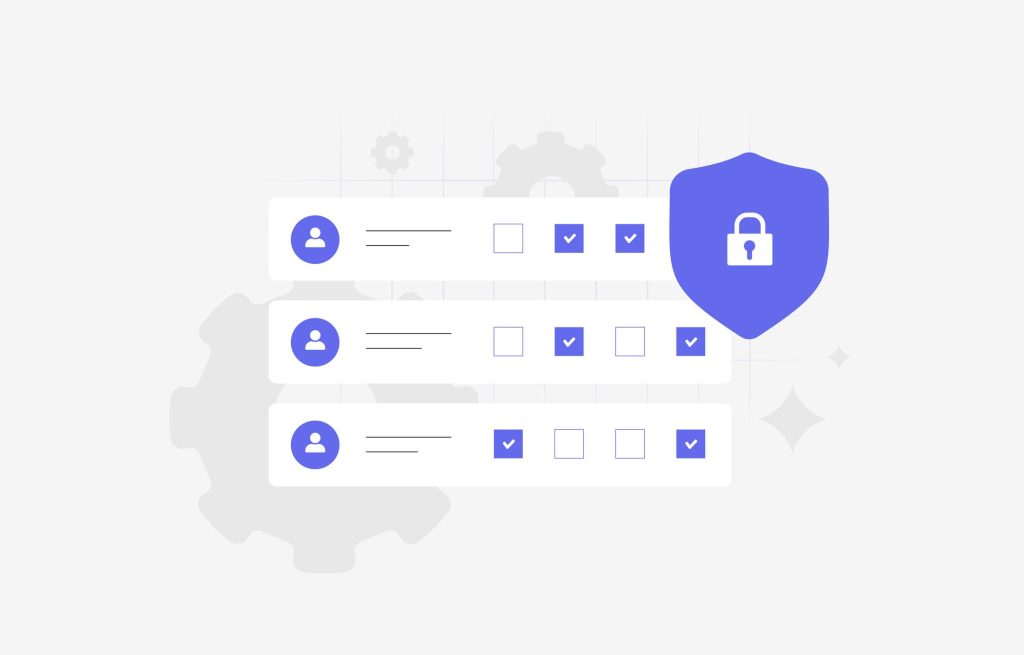
Turning welcome and goodbye messages ON or OFF
Use this workflow to locate the settings and avoid applying an incorrect command format.
- Confirm the connection. Open the WhatsApp account linked to Erfan MD and check that the bot has sent its connected confirmation. This establishes that you are working with the connected bot rather than an unrelated chat.
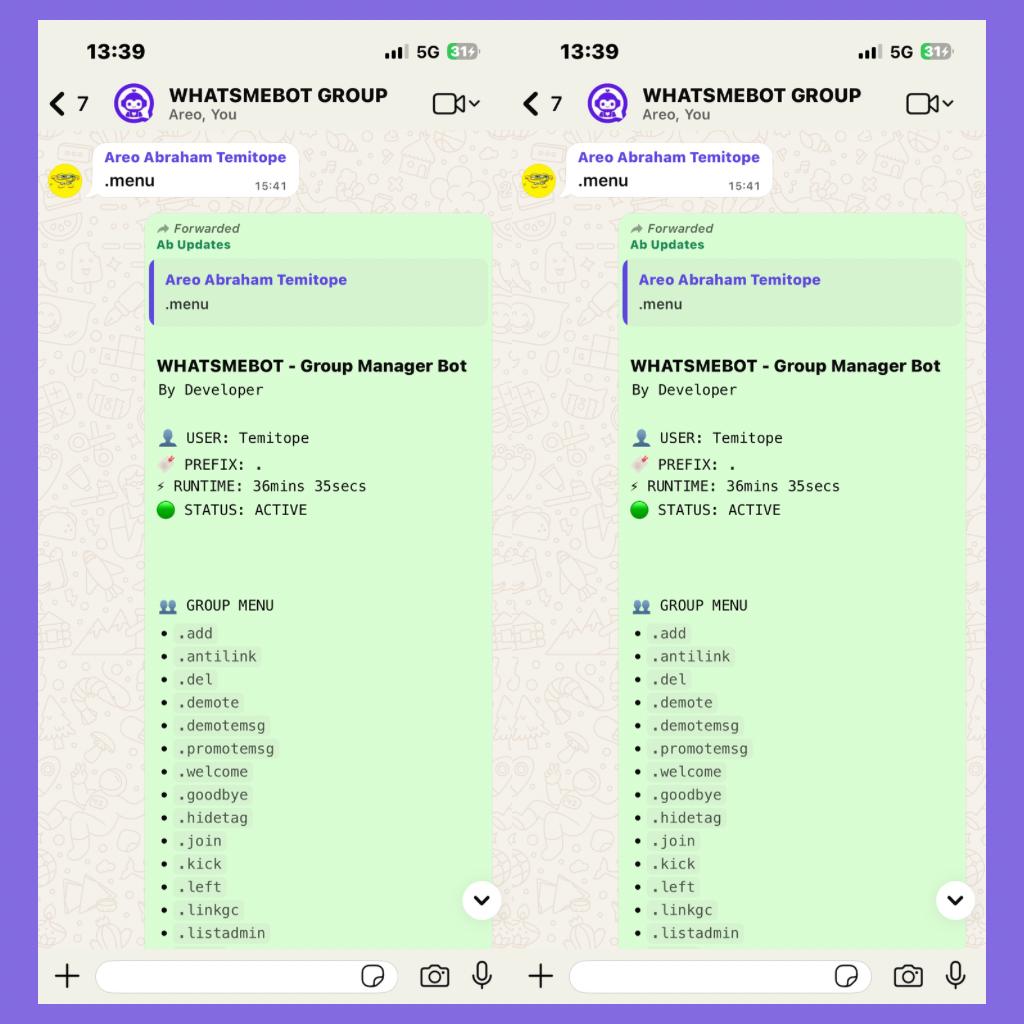
- Open the command menu. Send
.menuto display the available command categories. Look for the group-management and settings functions. - Open welcome configuration. Enter
.welcomeusing the command format displayed by the live bot. Read its response before entering additional text or settings. - Activate the welcome setting. Follow the activation instruction returned by the bot. Use the exact option and format it provides rather than adding an assumed
on,enableor other argument. - Configure the goodbye setting. Repeat the process using
.goodbye. Review the returned instructions and configure the departure message separately. - Test both events. Have a test account join and leave the group. Check that the correct message appears in the correct group before using the feature with regular participants.
To disable either greeting, reopen its corresponding configuration command and follow the displayed disable instruction. Check the resulting bot response to confirm the setting has changed. Do not assume that disabling welcome messages also disables goodbye notifications, or vice versa.
Welcome/Goodbye Configuration Reference Table
| Action | Exact documented command | Required role | Trigger delay in seconds | Custom text support |
|---|---|---|---|---|
| Open welcome configuration | .welcome — documented command entry; use the live response for activation syntax. | Bot account: group admin where required. Command issuer: follow the live permission check. | Not measured; record the actual test result. | Yes, customizable welcome messages are documented. |
| Open goodbye configuration | .goodbye — documented command entry; use the live response for activation syntax. | Bot account: group admin where required. Command issuer: follow the live permission check. | Not measured; record the actual test result. | Yes, customizable goodbye messages are documented. |
| Disable welcome messages | Use the welcome configuration’s displayed disable option. | Follow the command’s administrative restrictions. | Not applicable to the disable action. | Preserve the preferred text if the configuration allows it. |
| Disable goodbye messages | Use the goodbye configuration’s displayed disable option. | Follow the command’s administrative restrictions. | Not applicable to the disable action. | Preserve the preferred text if the configuration allows it. |
The documented command names identify the available greeting functions. The actual activation syntax, save instructions and observed event delay should come from the running bot’s response, not a guessed command format.
Setting neutral, non-spammy welcome copy
A useful greeting tells new members that they have joined the correct community and explains what to do next. Keep the message short, relevant to the group’s purpose and easy to read on a phone.
The following three examples provide neutral text that an administrator can adapt using the supported custom-message input.
Template 1: General community welcome
Welcome to the group. Please read the group description and keep your messages relevant to our community. Contact an administrator if you need help.
Template 2: Rules-focused welcome
Welcome. This group is for sharing useful updates and asking relevant questions. Please respect other members, avoid spam and follow the group guidelines.
Template 3: Member departure
A member has left the group. Thank you for respecting everyone's privacy and keeping the conversation focused on the community.
A greeting should not expose a departing member’s private information or pressure them to explain why they left. Avoid promotional links, repeated advertisements and unnecessary mentions that interrupt the group conversation.
Permission Requirements Before Configuring
Check both sides of the group connection: the person issuing the configuration command and the Erfan MD account inside the WhatsApp group. Most group commands require the bot account to have group administrator status, while individual commands can have additional restrictions. Check the live command response before changing group settings.
Sender admin status versus bot admin status
These are two separate permission checks. The sender is the WhatsApp account issuing the command, while the bot account is the linked account expected to carry out the requested group operation.
| Account or role | Responsibility | What to verify |
|---|---|---|
| Command issuer | Requests the greeting configuration. | Check whether the command requires a group administrator or owner. |
| Connected bot account | Processes the group command and sends the greeting. | Make it a group administrator for operations that require administrator permissions. |
| Other group members | Receive the group greeting. | Ordinary membership does not automatically provide configuration rights. |
Do not confuse a bot’s administrator status with the permission of the person submitting a command. The command itself determines which account permissions are checked.
If an administrator message says the operation is restricted, review the role of the account issuing the command and the role of the connected bot. Then retry the configuration using an account with the required permissions.
Why you should check each group separately
A greeting is intended to appear in the group where the membership event takes place. Different groups can also have different administrators, participants and moderation rules. Configure and test each target group independently instead of assuming that a successful setup in one group automatically applies everywhere.
Start with the group where you want to use automated greetings. Check the command response in that context and confirm that the resulting message appears in the same group. Repeat the process for other groups where you manage the bot.
The Erfan MD connection and operating guide explains the relationship between the website, pairing process and connected WhatsApp bot. Understanding these separate parts makes it easier to identify permission problems.
Troubleshooting Missing Welcome or Goodbye Messages
When a greeting fails, separate the group event from the bot connection. Confirm that the WhatsApp account remains linked, check the relevant greeting configuration, and review the bot’s permissions in the target group. Test one join and one leave event before changing several settings at once.
Bot disconnected, setting disabled or group restrictions
Start by checking whether the connected bot can still respond to an ordinary command. Send .ping and check the response. A successful reply indicates that the bot can answer that command, although it does not by itself prove that group membership events are working.
Review the following possible causes:
- Disconnected account: Check WhatsApp Linked Devices and confirm that the account still has an active connection to the bot service.
- Disabled greeting: Reopen
.welcomeor.goodbyeand review the current configuration response. - Bot permissions: Check whether the connected bot has the administrator role required for the group operation.
- Command permissions: Confirm that the account submitting the configuration command meets its role requirements.
- Group restrictions: Check whether the group’s membership and invitation settings allow the intended test account to join.
- Remote service issue: Check whether the bot can respond to other commands before treating the problem as a greeting-specific fault.
Keep in mind that Erfan MD has separate website, pairing tool and bot components. A problem with the pairing page does not automatically mean that an already-connected bot session has stopped working. Check the component that is actually failing.
Testing safely in a private two-member test group
A small private group gives you a controlled environment for checking greetings without interrupting a busy community. Start with your own account and the connected bot, then use a separate test account to produce the join and leave events.
- Create a private test group under your control.
- Add the connected bot account and check its relevant group permissions.
- Open
.menuand follow the returned instructions for.welcome. - Use a separate test account to join and check the group conversation.
- Record whether the welcome message appears, its wording and the elapsed time.
- Have the test account leave and check whether the goodbye message appears.
- Review the two results separately and correct the corresponding setting.
Do not treat a delayed message, an absent message or an error response as proof that both greeting features are working. Keep a separate result for the welcome and goodbye tests.
Common mistakes and what to do instead
| Mistake | Why it matters | What to do |
|---|---|---|
| Using a guessed toggle command. | The bot may interpret the additional text differently or reject the request. | Use the exact configuration instructions returned by the live command. |
| Assuming bot admin status is enough. | The account issuing the command may have separate permission restrictions. | Check both the sender and the connected bot account. |
| Testing only the welcome message. | A successful join event does not prove that departure notifications work. | Run separate join and leave tests. |
| Using another bot’s placeholders. | Different implementations can recognize different message variables. | Use only the tokens shown in Erfan MD’s live instructions. |
| Assuming a global configuration. | Another group may have different settings or permissions. | Verify the greeting behavior in every target group. |
| Changing several settings at once. | You cannot easily identify which change affected the result. | Change one greeting setting and test it before proceeding. |
For other connection and bot-response problems, consult the Erfan MD troubleshooting and setup guides before repeating a failed configuration request.
Limits and What Can Change
This guide covers the documented Erfan MD group welcome and goodbye command family, not every WhatsApp automation product or private-chat greeting feature. Exact command instructions, permission checks, placeholders, event timing and server behavior can vary with the running bot configuration and WhatsApp changes, so validate the live response before relying on an automation.
Erfan MD uses a remote server to maintain the linked WhatsApp bot session and process supported commands. The account owner should understand that a linked device can receive account messages and should review the service’s Privacy Policy before connecting an account.
WhatsApp states that unofficial third-party apps and websites are unsupported because their security and privacy practices cannot be validated. Linking an unsupported service can create account-security risks or restrictions. Review WhatsApp’s guidance about linked devices and unofficial apps before deciding whether to connect your account.
Use only accounts you own or have permission to manage. Keep pairing and verification codes private, obtain appropriate consent for group participation, and avoid unwanted bulk messages, spam or harassment. WhatsApp controls its own account restrictions and service policies; no greeting setting overrides those rules.
Frequently Asked Questions
These answers address the decisions that usually follow a greeting setup: which commands open the features, whether private chats are affected, what administrator permissions matter, and how to investigate a failed join event. They distinguish the documented command names from configuration details that must be checked in the running bot.
How do I turn on welcome messages in my WhatsApp group with Erfan MD?
Send .menu to find the group-management commands, then use .welcome to open the welcome configuration. Follow the activation instructions returned by the bot and test the setting with a separate account joining your group.
Does Erfan MD auto-reply to private DMs when welcome mode is on?
The .welcome and .goodbye features are documented as group greeting functions. They should not be treated as general private-chat auto-reply settings or as replacements for separate one-to-one bot commands.
Can non-admin members edit the group welcome message?
Do not assume that an ordinary member can change group greeting settings. Most Erfan MD group commands require the connected bot to have group administrator status, and the configuration command can apply additional restrictions to the person issuing it. Follow the live permission response.
How do I turn off goodbye notifications so the group stays clean?
Open the goodbye configuration with .goodbye and use its displayed disable instruction. Check the response and perform a test to verify that departure notifications have stopped without changing the welcome setting unnecessarily.
Why did the welcome message fail to trigger when a new member joined?
Check the active bot connection, the welcome setting, the bot’s group permissions and the group membership restrictions. Then repeat the join event with a test account. Use .ping to check an ordinary bot response, but remember that a successful ping does not prove that membership-event processing works.
Can I use dynamic placeholders in an Erfan MD welcome message?
Use a dynamic placeholder only when the live welcome configuration explicitly lists that token. Test it with a separate joining account and confirm that the output contains the expected participant information rather than the original token text.
Next Steps
After the test group behaves as expected, record the exact command instructions and event delay you observed. Repeat the checks in every group where you intend to use automated greetings, keep the message focused on the community, and retain a clear route for members to contact a human administrator.
- Review the Erfan MD group command reference to identify the relevant management functions.
- Read the bot connection guide to understand the linked account and remote service.
- Check the Erfan MD frequently asked questions for other common setup concerns.
- Review the Privacy Policy before connecting an account or sharing information through the bot.
About This Guide
This guide was written by Erfan Ahmed, founder of Erfan MD, who has a software development background and is based in Pakistan. It is intended to help group administrators understand the documented welcome and goodbye features and verify their behavior in a controlled WhatsApp environment.
For help with the Erfan MD service, contact company@explorefrag.com.
Last reviewed and updated: 23 November 2026.