WhatsApp Bot Permissions in Erfan MD: Who Can Change What?
By Erfan Ahmed | Last tested and updated: 23 November 2026.
WhatsApp bot permissions depend on the chat, the bot’s reply mode, and whether the bot account has the required group role. Ordinary users can receive replies in public mode, while private mode limits replies to the linked account owner. Group commands may require the bot account itself to hold WhatsApp group admin status. Core settings include .prefix, .botname, and .mode.
- Public mode allows anyone to receive bot replies; private mode restricts replies to the linked account owner.
- A human WhatsApp group admin and the linked bot account’s group admin status are two different things.
.prefix,.botname, and.modeare the three documented core settings commands.- Seeing a command in
.menudoes not guarantee that your account can execute it. - Check the active chat and the bot’s response before changing shared group settings.
Erfan MD is an independent third-party WhatsApp bot project, separate from WhatsApp and Meta. This guide distinguishes documented bot behaviour from permission decisions that you should verify in the actual chat before changing configuration.
The Three Erfan MD Permission Levels Explained
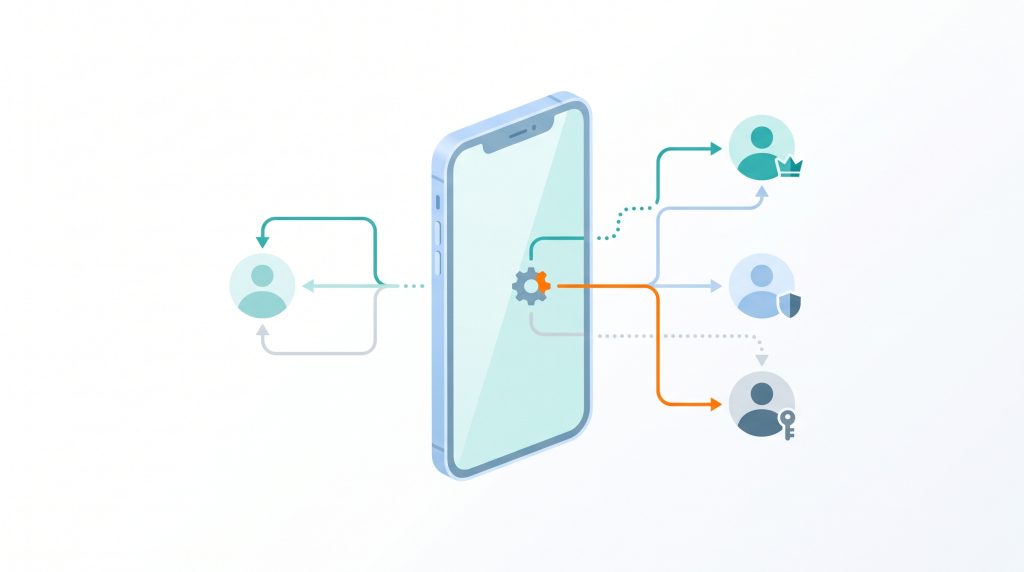
Erfan MD access is best understood through three separate roles: the person sending a command, the WhatsApp account linked to the bot, and the bot account’s role inside a group. These roles are not interchangeable. Public replies, private-mode restrictions, and group administrator requirements affect different parts of command execution.
Ordinary user commands: public utilities, AI and creative tools
An ordinary member is someone interacting with the bot without controlling its linked account or its group administrator position. In public mode, the bot replies to anyone. In private mode, it replies only to the account owner.
The public bot includes commands across AI, coding, utilities, group management, image tools, stickers, search, media, and settings. Its command catalogue lists over 800 commands, but that does not mean every command is available to every person.
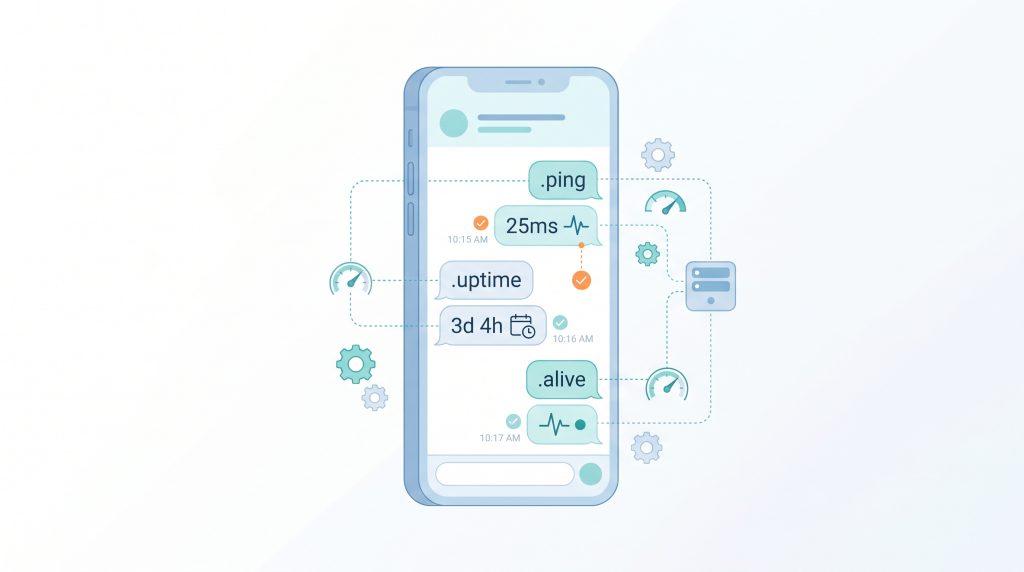
Examples of documented commands include .ai, .grammar, .weather, .sticker, and .ping. Use .menu to display command categories before selecting a feature.
For a clearer explanation of who receives responses, read the guide to Erfan MD public and private mode permissions.
WhatsApp group-admin commands versus bot-owner controls
Group permissions introduce another distinction. A person can be a WhatsApp group administrator while the linked bot account remains an ordinary group member. For most group commands, the bot account itself must hold WhatsApp group admin status.
This distinction matters when you use group-related features such as .tagall, .poll, .welcome, or .goodbye. Your personal administrator badge does not automatically transfer administrator privileges to the bot account.
Before troubleshooting a group command, inspect the participant list and check the linked bot account’s role in that particular group. The Erfan MD WhatsApp group administration guide provides additional context for group-based operations.
The bot owner is a separate concept from a group administrator. The linked account owner is the account whose WhatsApp number is paired with the service. Private mode restricts replies to that account owner, but this behaviour alone should not be interpreted as proof that every configuration command is exclusively owner-controlled.

Safe, Verified Settings in the Erfan MD Menu
The documented core configuration commands are .prefix, .botname, and .mode. The command examples also include .welcome and .goodbye for group-related functionality. Check the live menu and response before treating any setting as global or group-specific.
Group-level toggles: welcome, goodbye, anti-link and anti-tag
Group settings affect the experience of other participants, so distinguish ordinary commands from controls that change shared group behaviour.
The documented command examples include .welcome and .goodbye. These are useful starting points when reviewing group greeting functionality. Check the current .menu output for the exact instructions and required chat context before making a change.
Anti-link controls require additional care because they concern messages sent by other group participants. Use the Erfan MD anti-link group setup guide for the relevant instructions rather than guessing a command or copying an outdated example.
Apply the same rule to anti-tag requests. Use only the exact command or setting displayed by the live bot. Do not assume that a familiar command name or a setting shown in an old screenshot works in your current group.
For welcome messages, consult the dedicated WhatsApp group welcome message guide before changing a shared greeting configuration.
Prefix and bot profile options: changing core settings safely
The bot documents three core setting commands: .prefix, .botname, and .mode. They adjust the command prefix, bot name, and operating mode respectively. The exact execution permission and the scope of a change should be checked in the live response rather than assumed from the command name.
The connection confirmation message provides a useful reference point. It shows the prefix as . and the mode as public.
If you configure a different prefix, subsequent commands must follow the active prefix rather than an older example. Review the WhatsApp bot command syntax and prefix guide before troubleshooting commands that no longer respond.
The following Erfan MD Permission and Setting Scope Matrix separates documented behaviour from the checks you should perform before modifying a setting.
| Setting / Command | Scope | Ordinary User | Group Admin | Bot Owner | Verified Live Output |
|---|---|---|---|---|---|
.prefix | Core bot setting. Check whether the resulting change applies to one group or broader bot operation. | Check the bot’s execution response; menu visibility alone does not establish permission. | A human admin badge does not automatically grant access to core bot settings. | Check the linked account’s response and verify the resulting prefix. | The connection confirmation displays . as the prefix. The command is documented as a core setting. |
.botname | Core bot setting. Verify the resulting scope before applying it elsewhere. | Do not assume permission from the command’s presence in the menu. | Group administration does not automatically establish access to this setting. | Read the bot’s response to verify the resulting name. | The command is documented as a core setting for adjusting the bot name. |
.mode | Core bot setting affecting reply access. | Public mode allows replies; private mode restricts replies to the linked account owner. | Human group-admin status does not override private-mode reply restrictions. | The linked account owner receives replies in private mode. | The connection confirmation displays public. The command adjusts the operating mode. |
.welcome / .goodbye | Group-related functionality. Verify behaviour in the target group. | Do not assume permission to change shared group behaviour. | The linked bot account must hold group admin status for most group commands. | Bot ownership does not replace the linked account’s required group role. | Both appear in the documented command examples. Most group commands require bot account admin status. |
| Anti-link / anti-tag controls | Check the target group and the live menu instructions. | Use only the exact instructions provided by the bot. | Check that the linked bot account has the required group role. | Verify the target group’s resulting behaviour rather than assuming global scope. | Use the current menu and relevant group instructions as the reference for the operation. |
Use this matrix as an operational decision aid, not as a guarantee that every setting accepts commands from all three roles. The command’s documented purpose, its execution permission, and its resulting scope are separate questions.

Why Permission Checks Fail Even When a Command Is in the Menu
A command can appear in .menu yet still fail because the menu lists available command categories while execution can depend on reply mode, chat type, command-specific access, or the linked bot account’s group role. Check these conditions before changing configuration or assuming that the entire bot service is unavailable.
Menu visibility does not equal public execution access
The command menu is a catalogue of available functionality. It is not a guarantee that every person can execute every listed command.
For example, the bot can display its available command categories while private mode restricts responses to the linked account owner. An ordinary user might therefore see information about a command without receiving a response when attempting to use it.
Use this troubleshooting sequence:
- Check the active mode. Establish whether the bot is operating in
publicorprivatemode. This explains whether an ordinary user should receive a response. - Check the command prefix. Compare the command you sent with the active prefix displayed by the bot.
- Check the chat type. Determine whether you are testing in a private conversation or a WhatsApp group.
- Check the bot account’s group role. For most group commands, the linked bot account needs WhatsApp group admin status.
- Read the complete response. Use the bot’s actual reply to identify the next action instead of repeatedly sending the same command.
Permission-denied responses and chat-type mismatches
A failed command in a private conversation and a failed command in a group are not necessarily the same problem. A private-mode restriction concerns who receives replies, while a group command may depend on the linked bot account’s administrator status.
Keep the actual denial response when reporting an issue. Record the command, active prefix, chat type, bot mode, and linked bot account’s group role. This makes it easier to distinguish an access restriction from an incorrectly formatted command or a service problem.
Use the following table to identify common configuration mistakes.
| Mistake | Why it matters | What to do |
|---|---|---|
| Assuming every menu command is public | Public menu visibility does not establish execution permission. | Check the operating mode and the bot’s actual response. |
| Checking your own group-admin badge instead of the bot account’s role | Most group commands require the linked bot account to hold group admin status. | Inspect the linked bot account in the target group’s participant list. |
| Sending commands with an old prefix | A changed prefix can make previously familiar command syntax incorrect. | Check the active prefix before sending another command. |
| Changing settings in the wrong conversation | You may unintentionally affect a different group or conversation. | Confirm the chat name and read the resulting bot response. |
| Copying an old anti-link or welcome example | Old instructions may not match the live menu or current command syntax. | Use the relevant guide and check the live menu before applying changes. |
| Assuming a failed command means the entire service is down | The website, pairing tool, and WhatsApp bot are separate components. | Test the affected component independently. |
Remember that the website provides documentation, the homepage pairing tool generates connection codes, and the bot responds to commands inside WhatsApp. A problem in one component does not automatically mean the other components are unavailable.
Avoiding Accidental Configuration Changes Across Groups
Configuration changes can affect the conversation or group where you execute them, so confirm the active chat before sending a setting command. Read the bot’s response, verify the resulting behaviour, and obtain the group owner’s consent before changing shared rules. Do not assume a setting is group-specific or global without checking its effect.
Confirm the active chat before toggling settings
Use this workflow whenever you are about to modify a bot setting or shared group behaviour.
- Identify the target conversation. Open the intended WhatsApp chat and check its name. This prevents changes in the wrong group.
- Inspect the command menu. Send
.menuand locate the relevant category. This helps you avoid guessing command names. - Check the active prefix and mode. Compare your intended command with the connected bot’s displayed settings. This avoids syntax and access mistakes.
- Check the linked account’s group role. Confirm that the bot account has the required group administrator status when using group functionality. This addresses an important source of command failures.
- Read the bot’s response. Follow the instructions returned by the bot and inspect the resulting behaviour in the intended chat.
- Recheck the outcome. Test the relevant behaviour without assuming that a successful response establishes a global configuration change.
Get group-owner consent before modifying shared rules
Welcome messages, goodbye messages, anti-link controls, and other group-related settings can change the experience for participants. Discuss the intended change with the group owner before modifying a shared rule.
For example, suppose you want to review a welcome message in a community group. First confirm that you are in the correct group, check the live .menu, review the applicable .welcome instructions, and verify the linked bot account’s administrator status if required.
After applying an allowed change, inspect the bot’s response and test the result in the intended group. Do not assume that a setting has changed in every group connected to the same bot account.
Frequently Asked Questions About WhatsApp Bot Permissions
These answers address the most common differences between member access, group administrator requirements, bot ownership, and configuration behaviour. The key rule is to separate permission to receive a reply from permission to modify a setting, and to verify the bot account’s role in the actual WhatsApp conversation.
Why does a command work for the bot owner but not for me?
The bot may be running in private mode, which restricts replies to the linked WhatsApp account owner. A command may also have additional execution requirements. Check .mode, your chat type, and the command’s instructions before treating the behaviour as an error.
Does changing a setting in one group affect my other WhatsApp groups?
Do not assume that every setting has group-only or global scope. Check the bot’s response after making a change and verify its behaviour in the intended group. Treat the resulting scope as something to establish through the live bot rather than infer from the command name.
Can a group admin change global bot-owner settings?
A WhatsApp group administrator controls the group’s administration role, while the linked bot account owner controls a different part of the setup. Human group-admin status does not automatically grant permission to change core bot settings such as .prefix, .botname, or .mode.
How do I check which permission level a command requires?
Start with .menu to identify the command category, then read the live instructions and the bot’s response. For group commands, check whether the linked bot account holds WhatsApp group admin status. Also check whether private mode restricts replies to the linked account owner.
Why are certain settings from old screenshots not listed here?
Old screenshots may show a different menu or configuration presentation. Use the live .menu and the bot’s current response as your working reference. Avoid copying commands or settings from screenshots unless the same instructions appear in the active bot interface.
Limits and What Can Change
This guide covers the documented Erfan MD commands and permission behaviours, not every possible configuration exposed by a future menu or server update. WhatsApp can change linked-device behaviour and account rules, while remote server and hosting changes can affect bot availability. Recheck the live bot and WhatsApp Help Center before relying on older screenshots.
Erfan MD runs the remote server to which your linked WhatsApp account connects. That server allows the bot to read and respond to commands during an active session. For details about session information and server data that may be processed or logged, consult the Erfan MD Privacy Policy rather than assuming that the service has zero access to account-related information.
The pairing process does not ask for your WhatsApp password. However, any linked device can receive messages on your account, so link only a service you trust. You can unlink a device through WhatsApp Linked Devices.
WhatsApp’s Help Center explains that unofficial third-party apps are unsupported and may expose accounts to security risks or restrictions. Review its guidance about unofficial third-party applications before connecting an account.
WhatsApp alone controls account restrictions. The availability of the bot also depends on its remote service and hosting infrastructure, so a successful connection does not guarantee uninterrupted availability.
Next Steps: Configure Your WhatsApp Bot Safely
Once you understand the difference between public access, private-mode restrictions, and group administrator requirements, work through the relevant documentation before modifying settings. Start with the command catalogue, then review group-specific instructions and test one change at a time in the intended conversation.
- Review available commands: Read the Erfan MD command menu and commands guide before choosing a feature.
- Configure group greetings: Follow the WhatsApp welcome message instructions before changing shared group behaviour.
- Review link moderation: Consult the anti-link group configuration guide and check the live bot instructions before applying a rule.
About This Guide
This guide was written by Erfan Ahmed, founder of Erfan MD, who has a software development background and is based in Pakistan. For support with the website, pairing tool, or bot configuration, contact company@explorefrag.com. Last tested and updated: 23 November 2026.