


By Erfan Ahmed | Last updated: 23 November 2026.
Erfan MD is an independent, third-party WhatsApp bot project. It is not owned or operated by WhatsApp or Meta.
The confirmed Erfan MD sticker command is .sticker. Send .menu to display the available command categories, then follow the sticker instructions displayed by the bot. The exact image attachment method, accepted video formats, file-size limits and generated output specifications must be checked against the live command instructions.
- Sticker command:
.sticker. - Command discovery:
.menudisplays command categories. - Default prefix:
., as shown in the connection confirmation. - Image and video processing: Check the live command instructions before choosing an attachment method.
- WhatsApp specifications: Its sticker-pack requirements are separate from Erfan MD’s bot input limits.
Verified Erfan MD sticker commands
The command name confirmed in Erfan MD’s project command list is .sticker. To see where it sits and how the live bot expects it to be used, send .menu in the bot chat. The menu displays command categories and provides the starting point for selecting the appropriate functionality.
Exact command spellings and aliases
The confirmed sticker-related command is:
.sticker
This is the command spelling to look for in the Erfan MD command menu. Avoid adding unverified arguments, alternative prefixes or command variations.
The connected confirmation message displays the command prefix .. Erfan MD also provides a .prefix command for adjusting the prefix, so check your active prefix if the standard spelling does not work.
Use these commands to navigate the bot:
| Command | Purpose |
|---|---|
.menu | Displays available command categories. |
.sticker | Confirmed sticker-related command. |
.prefix | Adjusts the bot’s command prefix. |
.ping | Another confirmed command example for checking bot responsiveness. |
Sticker creation vs. sticker search commands
The confirmed command list identifies .sticker as a sticker-related feature. Do not confuse a command that creates or processes stickers with a command that searches for existing stickers. Check the live categories through .menu before assuming a separate sticker-search command exists.
This distinction matters when using commands from different WhatsApp bots. Similar services can use different prefixes, aliases and attachment instructions. A command documented for another bot does not establish the syntax supported by Erfan MD.
Sticker command specification table
The following specification separates the available command information from the measurements that must be collected during an Erfan MD execution test.
| Specification | Erfan MD sticker command |
|---|---|
| Command alias | .sticker |
| Accepted input type | Check the live command instructions for the supported attachment method and media types. |
| Maximum file size tested | Awaiting a recorded live test. |
| Output format | Record the actual returned file format. |
| Average response time in seconds | Awaiting timed test results. |
| Live status | Command is listed in the project command information; execution requires a live check. |
Step-by-step: How to convert an image into a WhatsApp sticker
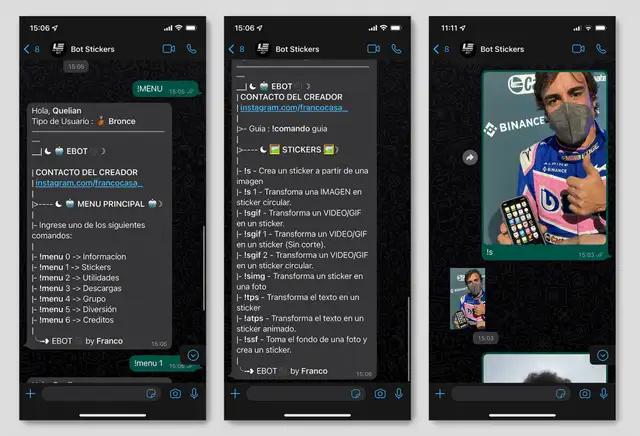
Start by opening the Erfan MD bot conversation and checking its sticker command instructions. The bot’s menu determines how you should attach the image and apply the command. Follow the attachment method displayed there instead of assuming that captioning and replying to images are interchangeable.
Method 1 — Captioning a newly uploaded image
Use this method only when the sticker command instructions displayed by the live bot specify image captioning.
- Open your Erfan MD conversation. Make sure you are sending messages to the connected bot rather than using the website or pairing form.
- Display the command menu. Send
.menuand locate the sticker-related category. - Check the attachment instructions. Read how the bot expects the image and command to be supplied.
- Prepare your image. Choose the original image you have permission to use. Check its appearance before sending.
- Apply the displayed caption syntax. If the live instructions specify a command in the image caption, use the exact command spelling
.sticker. - Inspect the response. Check whether the bot returns a sticker and whether the resulting image has the expected appearance.
Why this method needs verification: A caption-based workflow must be supported by the particular bot. Sending an image with a command in its caption does not guarantee that Erfan MD will process it.

Method 2 — Replying to an existing image in chat
Use this method only when the live command instructions explicitly describe replying to an existing image.
- Send the image first. Upload your selected photo to the Erfan MD conversation.
- Open the reply option. Select the image message rather than creating an unrelated new message.
- Enter the sticker command. If the menu specifies a reply workflow, enter
.stickerusing the displayed syntax. - Send the command. Submit the reply and inspect the bot’s response.
- Check the resulting media. Confirm whether the response is a sticker and whether transparency, cropping and image quality are preserved.
Why this method needs verification: Reply-based processing and caption-based processing are different interaction patterns. Use whichever method the live Erfan MD instructions actually specify.
Worked command example
The verified command text is:
.sticker
This is a command-name example, not a claim that sending it alone creates a sticker. Use it with the attachment method and any additional syntax displayed by the bot.

Supported formats, dimensions and file-size guidance
Erfan MD’s command name should not be confused with WhatsApp’s own sticker-pack specifications. WhatsApp publishes separate requirements for static and animated sticker uploads, including pixel dimensions and file sizes. These reference values help with sticker preparation but do not establish the bot’s accepted input limits or returned file specifications.
Static images vs. animated clips
Static images and animated stickers have different technical requirements. WhatsApp’s Help Center provides the following sticker-pack guidance:
| Specification | Static sticker | Animated sticker |
|---|---|---|
| Recommended dimensions | 512 × 512 pixels | 512 × 512 pixels |
| Maximum sticker file size | 100 KB | 500 KB |
| Animation duration | Not applicable | Up to 10 seconds |
These figures relate to WhatsApp sticker-pack upload requirements. They are not confirmed Erfan MD upload limits, output measurements or processing guarantees.
For an Erfan MD sticker test, record these properties separately:
- Original image or clip format.
- Original file size in KB or MB.
- Actual returned file format, including whether it is WebP.
- Returned image dimensions in pixels.
- Returned file size in KB.
- Elapsed time between sending the command and receiving the result.
A WebP extension and a 512 × 512 pixel image describe different properties. Check the actual returned file rather than assuming that a square sticker must be WebP.
Aspect ratio cropping and transparency handling
Image composition affects how a sticker looks inside a WhatsApp conversation. A square canvas is a useful preparation reference for sticker artwork, but it does not establish how Erfan MD crops or resizes an uploaded photograph.
For better source-image preparation:
- Choose an image with a clearly visible main subject.
- Avoid placing important details too close to the image edges.
- Use a clean background when the subject needs to stand out.
- Prepare transparent artwork in an image editor when transparency is required.
- Inspect the returned sticker instead of assuming that transparency or cropping will be preserved.
Automatic background removal and transparent-background preservation are separate image-processing functions. Do not assume that the presence of a sticker command means the bot automatically removes backgrounds.
For WhatsApp’s own sticker creation and upload instructions, consult the WhatsApp Help Center guide to creating and sharing custom stickers.
Fixing sticker command errors and image rights
When a sticker command does not produce a response, check the active command prefix, connection status, media attachment method and instructions in the live menu. Also distinguish a command problem from a service or pairing problem, because the website, pairing tool and WhatsApp bot are separate parts of Erfan MD.
Why stickers fail
Use this troubleshooting table to identify what to check before repeatedly sending the same media.
| Mistake | Why it matters | What to do |
|---|---|---|
| Using the wrong command prefix | The bot may not recognise the submitted command. | Check the active prefix and use .prefix when necessary. |
| Copying syntax from another bot | Different WhatsApp bots can use different command formats. | Use Erfan MD’s own .menu instructions. |
| Using the wrong attachment method | The command may expect a different media interaction. | Follow the caption or reply instructions shown by the live bot. |
| Assuming an oversized file is supported | The actual bot upload ceiling may differ from WhatsApp sticker-pack requirements. | Check any file restrictions displayed by the bot and try a smaller test image. |
| Expecting a video to become animated automatically | Video input and animated output are separate capabilities. | Check the live menu and inspect the returned media. |
| Assuming every service error means the website is down | The website, pairing form and bot operate as separate parts. | Check bot responses independently from website availability. |
If other commands also fail, try the confirmed .ping command and check whether the bot responds. If the bot itself is unavailable, review the relevant connection information in the Erfan MD WhatsApp pairing-code connection guide.
Also check the account mode. Public mode allows replies to anyone, whereas private mode limits replies to the account owner. Read the Erfan MD public and private mode explanation when responses differ between account owners and other users.
Copyright, likeness and personal-media guidelines
Only create stickers from images that you own or have permission to use. A photograph being available online does not automatically give you permission to turn it into a sticker and redistribute it.
Before using someone else’s photograph, consider their privacy and obtain appropriate permission. Be especially careful with personal photographs, identifiable faces, company branding, copyrighted characters and images containing private information.
WhatsApp’s sticker-related terms also address intellectual property, publicity rights and permissions for creator content. Review the WhatsApp Stickers Terms of Service when creating or distributing sticker packs.
Erfan MD is a third-party service that uses a remote server connected to your WhatsApp account. For information about session data and processing, read the Erfan MD Privacy Policy before using the service.
Frequently asked questions
These answers distinguish the confirmed sticker command from WhatsApp’s general sticker requirements. Use the live Erfan MD menu for command syntax and media instructions, and use WhatsApp’s documentation for its own sticker creation and sharing rules.
What is the exact command to make a sticker in Erfan MD?
The confirmed sticker-related Erfan MD command is .sticker. Send .menu first to display command categories and follow the instructions associated with the sticker feature. Do not add unverified arguments or copy another bot’s command syntax.
Can Erfan MD make animated stickers from GIFs or short videos?
The confirmed command information identifies .sticker, but that alone does not establish GIF or video support or animated output. Check the live menu for accepted media types and inspect the resulting file to establish whether it is animated.
Why did the bot ignore my image when I sent the sticker command?
Check whether the active prefix is correct, whether the bot is responding to .menu or .ping, and whether you used the attachment method specified in its menu. Also check the bot connection and any displayed media restrictions before retrying.
Does Erfan MD automatically remove image backgrounds?
Automatic background removal is a separate image-editing feature and should not be assumed from the presence of .sticker. Prepare a transparent image with an image editor when needed, then check the result to see whether transparency is preserved.
What size should my photo be for the sharpest WhatsApp sticker?
WhatsApp’s published sticker-pack guidance specifies 512 × 512 pixels. Preparing artwork around a square canvas is a useful starting point, but the Erfan MD input dimensions and resizing behaviour must be checked independently. Keep the original image so you can compare the returned result.
Limits and what can change
Sticker command instructions depend on the live Erfan MD menu and the remote bot service. WhatsApp can also change its media and sticker requirements. Recheck .menu before following older screenshots, saved instructions or third-party bot tutorials, and treat WhatsApp’s native sticker specifications as a separate reference.
The practical distinction is that a command being listed does not establish every media-processing capability. The accepted input format, file-size ceiling, output format, dimensions and processing speed should each be measured independently.
Next steps
Before relying on the sticker workflow, check the command against the connected bot and keep your account and personal media in mind. These resources explain the surrounding Erfan MD service and connection process.
- Read the Erfan MD product overview to understand how the website, pairing tool and bot fit together.
- Use the Erfan MD website access and pairing tool guide when you need to locate the connection form.
- Review Erfan MD access, free usage and possible costs before relying on continued service availability.
About this guide
This guide is written by Erfan Ahmed, founder of Erfan MD, with a software development background and based in Pakistan. For assistance with Erfan MD commands or feature information, contact company@explorefrag.com.
Last updated: 23 November 2026.




1 comment