


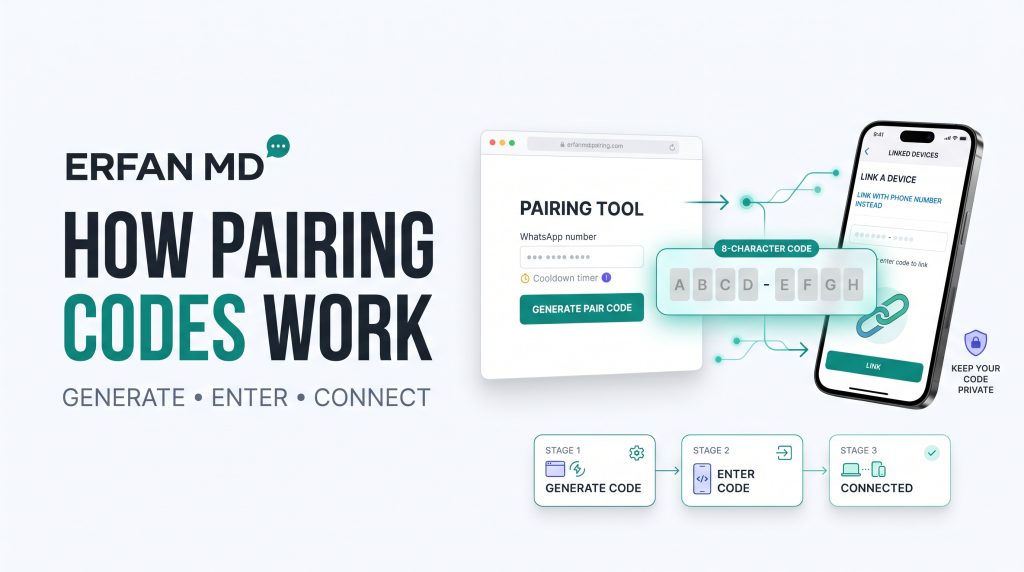
How Pairing Codes Work With Erfan MD
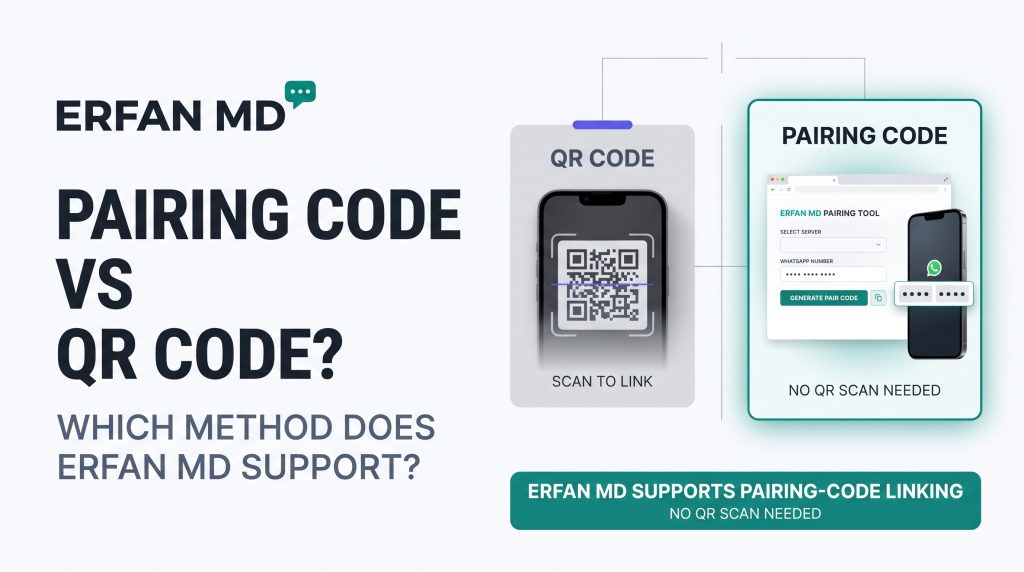
An Erfan MD WhatsApp bot pair code is an eight-character code generated by the pairing tool to connect a WhatsApp account. The account owner enters it through WhatsApp’s Linked Devices option using “Link with phone number instead”. This connects the account to the bot. The code must remain private and should only be entered on the owner’s own authorised device.
What a Pairing Code Is
A WhatsApp pairing code is used during the process of linking an account to another service or device. In the Erfan MD connection flow, the pairing tool generates the code, and the account owner enters it inside WhatsApp to complete the linking process.
Instead of treating the code as an ordinary message or login password, understand it as part of an account-linking procedure. It connects the WhatsApp account through the Linked Devices process and allows the Erfan MD bot to operate after a successful connection.
How device linking works in simple terms
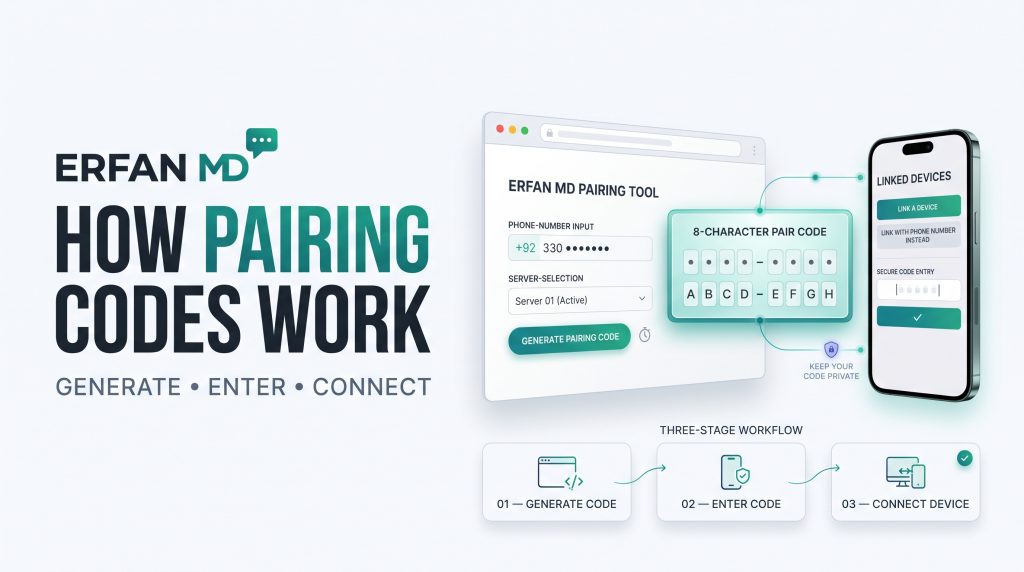
Erfan MD separates the connection process into two parts. First, its pairing tool generates an eight-character code. Second, the account owner uses WhatsApp’s own linking interface to enter that code.
The process involves the following components:
- Erfan MD pairing tool: Lets the user choose a server, enter a WhatsApp number and request a pairing code.
- Pairing code: An eight-character code generated through the documented pairing process.
- WhatsApp Linked Devices: The account interface where the owner enters the code to link the account.
- Connected bot: The Erfan MD bot that responds to commands after successful linking.
This means that requesting a code and completing the connection are separate steps. Receiving a code alone does not establish that the WhatsApp account has been linked successfully.
A pairing code is not your password or recovery code
A pairing code should not be confused with your WhatsApp password, account recovery information or an ordinary verification message. It has a specific purpose in the documented device-linking process.
Never give the code to another person, including someone claiming to be a support representative. Enter it only into the intended WhatsApp linking interface on an account you own or are authorised to connect.
The Erfan MD dashboard displays a cooldown timer when generating the code. Follow the displayed instructions rather than assuming that the code can be reused indefinitely. The exact code-expiry period has not been established in the available documentation.
What Happens When a Pairing Code Is Requested
The Erfan MD pairing process starts with server selection and phone-number entry. The user then requests a code using the Generate Pair Code button. The dashboard provides an eight-character code and displays a cooldown timer with a Copy Code option.
Understanding the pairing form and server response
Before requesting a code, users encounter the following documented elements in the pairing flow:
| Element | Purpose |
|---|---|
| Server selection | Allows the user to choose a server. The dashboard displays active slots against the limit. |
| WhatsApp number | The user enters their number with the appropriate country code. |
| Generate Pair Code | Requests an eight-character pairing code. |
| Cooldown timer | Displays a waiting interval associated with the code-generation flow. |
| Copy Code | Provides a way to copy the displayed code. |
These elements explain the documented user-facing process. They should not be interpreted as a guarantee that a server always has an available slot or that every request will succeed.
What information is entered and where it goes
The documented pairing form asks the user to choose a server and enter a WhatsApp phone number with its country code. The pairing tool then generates a code in response to the request.
However, the available product documentation does not provide a verified description of the exact backend endpoint, data transmission details, storage arrangements, logging practices or retention period for submitted information.
[OWNER TO CONFIRM: Document the exact information submitted, the receiving server or endpoint, how the phone number and pairing request are handled, whether information is logged or stored, and the applicable retention and access controls.]
Do not assume that a visible pairing form tells users everything about backend data handling. These details should be explained in an appropriate privacy notice before the process is promoted as fully documented.
Where the Account Owner Enters the Code
The pairing code is entered inside WhatsApp, not sent to another person or entered into an unrelated website. The documented Erfan MD process directs users to the Linked Devices section of WhatsApp.
Follow the documented WhatsApp linking steps
After receiving the code from the pairing tool, follow this sequence on your own WhatsApp account:
- Open WhatsApp on your phone.
- Navigate to Linked Devices.
- Select Link a Device.
- Choose Link with phone number instead.
- Enter the eight-character pairing code generated by the Erfan MD tool.
- Follow the confirmation displayed by WhatsApp to complete the linking process.
The labels above reflect the documented Erfan MD connection instructions. The exact wording or screen arrangement should be checked against the current WhatsApp interface before publication, as app interfaces can change.
Keep the code on your own device
The account owner should complete the linking action personally. Do not send the code to an unfamiliar website, another user, a group conversation or someone offering to pair the account remotely.
Also check the website address before requesting a code. The Erfan MD project website is https://erfan-md.site/. The direct pairing-tool URL should only be added after the owner confirms the live address.
Never enter an account-linking code when the website, device prompt or destination looks unfamiliar.
After the Connection Step
Generating a pairing code and successfully connecting a WhatsApp account are different events. The connection confirmation message provides the documented indication that the Erfan MD bot has linked successfully.
What a successful connection looks like
After successful linking, Erfan MD sends a connected confirmation message. The documented message displays the command prefix . and the mode public.
This is the documented success indication in the Erfan MD connection flow. Once connected, the user can enter:
.menu
The command lists the available bot features. You can then explore the documented functionality without confusing the initial pairing step with the bot’s later command interactions.
For a broader explanation of the project, read the Erfan MD product overview and pairing tool guide.
Understanding pending and failed connections
The available documentation confirms the successful connection message but does not provide an official list of pending states, error codes or failure messages. Therefore, an incomplete connection should not automatically be assigned a specific technical cause.
| Situation | What is known | Recommended response |
|---|---|---|
| Code displayed | The pairing tool has returned an eight-character code. | Follow the WhatsApp linking instructions on your own device. |
| No connection confirmation | Successful linking has not been established by the documented confirmation. | Check the entered number and the current instructions without sharing the code. |
| Connected confirmation received | The documented successful connection message has appeared. | Check the displayed prefix and mode, then use .menu. |
| Unexpected error or unfamiliar response | No verified error-to-cause mapping is available. | Stop and contact the project through its published support route. |
Remember that the website, pairing tool and connected bot are separate components. A website loading problem does not automatically mean that the linked bot has stopped working.
After connection, review your WhatsApp Linked Devices periodically. Remove devices or sessions you no longer recognise or need using WhatsApp’s own device-management controls. For additional setup information, consult the Erfan MD How It Works guide.
When to Stop the Pairing Process
Pairing involves linking a personal WhatsApp account, so users should not continue when something about the destination or connection request appears unfamiliar.
Stop if the website, device prompt or server response looks unfamiliar
Stop before entering the code when:
- The website address does not match the intended Erfan MD domain.
- An unfamiliar page asks you to install an unexpected application or modified APK.
- The WhatsApp linking prompt does not match the documented process.
- A person asks you to send them your pairing or verification code.
- The pairing tool displays an unexpected server response that you cannot understand.
Do not try to work around an unfamiliar security prompt or share personal account information to obtain assistance.
How to request support safely
If the documented process does not work, note the stage at which it stopped. For example, you can explain whether server selection was available, whether the code appeared or whether WhatsApp displayed a connection confirmation.
Contact Erfan MD through its published support email: company@explorefrag.com.
Describe the issue without including your pairing code, WhatsApp verification code, password or other private account information. Support should not need you to disclose a live account-linking code to understand where the process stopped.
Common Mistakes During WhatsApp Pairing
- Confusing code generation with successful linking: Receiving a code does not mean the account is already connected.
- Entering the code in the wrong place: The documented destination is WhatsApp’s Link with phone number instead option.
- Entering a number without its country code: The documented pairing form requires the phone number with its country code.
- Ignoring the cooldown timer: Follow the waiting instructions displayed by the pairing tool.
- Sharing the pairing code: Keep the code private and enter it only on your own authorised account.
- Assuming an error has a known cause: Do not invent a diagnosis when the exact error and its meaning have not been documented.
What the Pairing Process Does Not Guarantee
The documented pairing flow explains how to request and enter a code. It does not guarantee that every server will have an available slot, every request will succeed or every connection issue will have the same cause.
The process also does not establish a free or unlimited service policy. The phrase “free WhatsApp bot pairing” is a search term, not proof that the pairing tool or bot has no applicable charges. Review the Erfan MD access, pricing and possible-costs guide for the separate pricing discussion.
Erfan MD is an independent WhatsApp bot project, not owned, operated, endorsed or certified by WhatsApp or Meta. Account bans are decided by WhatsApp or Meta, and Erfan MD cannot guarantee a ban-free experience.
Erfan MD’s documented privacy statement says it has no access to users’ WhatsApp chats or data and operates a server linked to the user’s WhatsApp account. This statement should not be interpreted as a substitute for a clear explanation of the pairing form’s own data handling.
Frequently Asked Questions
What is a WhatsApp bot pair code?
It is a code used in a linking process to connect a WhatsApp account. In Erfan MD, the pairing tool generates an eight-character code that the account owner enters through WhatsApp’s Linked Devices interface.
Where do I enter the Erfan MD pairing code?
Open WhatsApp, navigate to Linked Devices, choose Link a Device and select Link with phone number instead. Enter the code generated by the Erfan MD pairing tool on your own authorised account.
Is the Erfan MD pairing code the same as my WhatsApp password?
No. The pairing code is used for the documented account-linking process. It is not your WhatsApp password or general account recovery information, and you should never share it with another person.
What happens after successful pairing?
Erfan MD sends a connection confirmation message displaying the command prefix “.” and the mode “public”. You can then enter .menu to see the available features.
Why have I received a pairing code but not a connection confirmation?
Code generation and successful linking are separate steps. The available documentation does not provide a complete list of failure causes, so check the documented instructions and contact support if the expected confirmation does not appear.
Is free WhatsApp bot pairing guaranteed with Erfan MD?
The pairing instructions do not establish whether the service is free or paid. Check the published pricing and usage conditions rather than assuming that code generation means there are no applicable charges.
About This Guide
Written by Erfan Ahmed, founder of Erfan MD.
For product-related questions, contact company@explorefrag.com.
What Can Change
The pairing-tool interface, server availability, code-generation behaviour, cooldown display, WhatsApp linking instructions and connection confirmation may change. Review this guide whenever the live pairing flow, server endpoint, account-linking interface or service policy is updated.


1 comment