After WhatsApp Bot Pairing: How to Confirm Erfan MD Is Connected
By Erfan Ahmed | Last tested and updated: 23 November 2026.
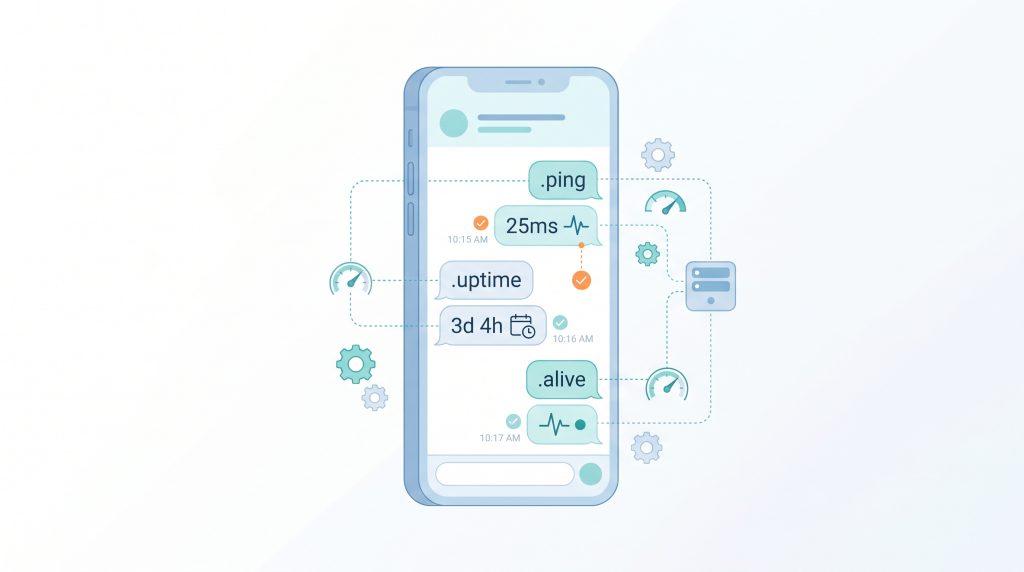
After WhatsApp accepts your Erfan MD pairing code, check Linked Devices for the new session, then look for an automatic connected message showing the . prefix and public mode. Send .menu to see command categories; a reply confirms the bot is responding. Erfan MD is an independent third-party WhatsApp bot project.
Key takeaways
- A successful connection produces an automatic confirmation message displaying the
.prefix andpublicmode. - WhatsApp Linked Devices lets you inspect the newly connected session on Android and iPhone.
.menuis the recommended first command because it displays available command categories without requiring a group action.- A linked WhatsApp session and an active, responding bot are two different things. Check both before assuming the setup is complete.
What a successful pairing looks like
The clearest success signal is an automatic connected confirmation from the bot showing the . prefix and public mode. Then open WhatsApp Linked Devices to verify the session and send .menu to display command categories. A visible session alone does not prove that the bot is answering commands.
Verified on-screen indicator and initialization checks
After WhatsApp accepts your eight-character pairing code, look for a connected confirmation message from Erfan MD. The message identifies the active command prefix as . and the operating mode as public.
This is the first application-level confirmation you should look for. It indicates that the connection process has progressed beyond simply entering a code in WhatsApp.
Use these visible checks instead of relying on an assumed startup countdown:
- Check the confirmation message. Look for the connected notification and its displayed prefix and mode.
- Inspect Linked Devices. Verify that the newly connected session appears in your WhatsApp account.
- Send a test command. Enter
.menuin a suitable test conversation and check whether the bot returns command categories.
Once the bot responds to .menu, you have a practical confirmation that it is processing commands. A session entry without a command response is a reason to investigate further.
Why a linked session is not guaranteed to remain permanent
Linking a device establishes an active WhatsApp session, but you should not treat that connection as permanent. You can disconnect a linked device through WhatsApp, and the bot also depends on its remote service and hosting infrastructure to process commands.
Erfan MD runs the remote server to which your WhatsApp account connects. During an active session, that server can read and respond to commands, so connecting it is also a decision about which service you trust with access to your account.
For details about session and server information that may be processed or logged, read the Erfan MD Privacy Policy. Do not assume that unlinking a device and reviewing its privacy implications are interchangeable actions.
Confirming the connection inside WhatsApp Linked Devices
Check the WhatsApp Linked Devices screen after entering the code, then compare the new session with the time you linked the account. On both Android and iPhone, the pairing path uses Link with phone number instead; it does not require a QR scan.
Checking active sessions on Android and iPhone
Open WhatsApp on the phone containing the account you connected. Follow this navigation path:
- Open WhatsApp.
- Go to Linked Devices.
- Review the sessions associated with your account.
- Identify the newly connected session and inspect its displayed information.
The pairing procedure itself uses the following sequence when you connect your account:
Linked Devices > Link a Device > Link with phone number instead
Enter the eight-character code generated by the Erfan MD pairing form. This is a phone-number pairing procedure, not a QR-code scanning procedure, and it works on Android and iPhone.
You can find additional setup instructions in the Erfan MD connection guide and the explanation of how the WhatsApp bot connection works.
Recognising your newly paired session timestamp
When several devices appear in Linked Devices, avoid assuming that every entry belongs to your newest connection. Use the session information WhatsApp displays to distinguish the new entry from devices you already use.
If WhatsApp displays a last-active time or equivalent activity information, compare it with the time you completed pairing. Also review the available device details instead of relying on an assumed device name.
Keep track of which sessions you recognise. An unfamiliar entry deserves attention even when the Erfan MD bot is responding correctly, because every linked device represents access to your WhatsApp account.

Running your first safe test command
Use .menu as the first test after pairing because it displays the bot’s command categories without requiring group administration or a bulk messaging action. Run it in a suitable conversation you control, then inspect the response before trying settings, group-management commands, or other features.
Testing with a harmless read-only command
The first command should answer one simple question: can the connected bot process a request and return a response?
Use this worked example:
Example: First Erfan MD responsiveness test
- Open a suitable WhatsApp test conversation that you control.
- Type
.menuusing the connected account. - Send the message.
- Check whether the bot displays its command categories.
- Compare the response with the expected menu display.
The .menu command is useful because it gives you an overview of available features without requiring you to change the bot’s configuration. The public bot lists over 800 commands across categories that include AI, coding, groups, images and stickers, search and media, settings, utilities, status, owner, and admin features.
For a more detailed explanation of the available commands, read the Erfan MD command menu and commands guide.
Do not begin by testing a feature you do not understand. First establish that the basic command-response cycle works.
What not to test first: bulk actions and group-admin commands
Avoid using bulk or group-management commands as your initial connection test. Commands such as .tagall, .welcome, .goodbye, and .poll serve group-related purposes, so they are not necessary for checking whether a newly paired bot responds.
Most group commands require the bot account to hold WhatsApp group admin status. A permission problem with a group command does not automatically indicate a pairing failure.
Also understand the mode displayed in your connected confirmation message:
| Mode | Who receives command responses? | What it means for your test |
|---|---|---|
public | Anyone | Use the account owner’s test command and check the response. |
private | Only the account owner | Run the test from the account owner’s context. |
The connected confirmation displays public as the mode. You can adjust core settings using .prefix, .botname, and .mode.
Do not change these settings simply to test connectivity. First verify the existing prefix and run the basic menu command. For a detailed explanation of access behavior, see the Erfan MD public and private mode guide.
Next steps if the bot stays silent after pairing
If WhatsApp shows a linked session but Erfan MD does not respond, separate the connection problem from the bot-service problem. Check the confirmation message, run .menu, and inspect Linked Devices before retrying. If the session is no longer needed, disconnect it directly through WhatsApp.
When to wait versus when to unlink and retry safely
Do not generate another pairing code simply because a command has not received an immediate response. First establish which part of the connection is affected.
Erfan MD has three distinct parts:
| Component | Purpose | What to check |
|---|---|---|
| Website | Provides documentation and guides. | Open the relevant setup or troubleshooting page. |
| Pairing tool | Generates the WhatsApp connection code. | Review server selection, active slots, number format, and the generated code. |
| Bot | Processes commands and responds inside WhatsApp. | Check the connected confirmation and test with .menu. |
A problem with one component does not automatically mean that the other components are unavailable. For example, being able to read a setup guide does not establish that the remote bot service is processing your commands.
When you need to retry the pairing process, use this sequence:
- Return to the pairing form. The same form serves both WhatsApp Bot and WhatsApp Mini Bot setups.
- Select a server. Review its displayed status, active slots, and counter out of 50.
- Enter your full phone number. Include the country calling code, use digits only, and do not enter a plus sign.
- Generate the code. Press Generate WhatsApp Pairing Code and wait for the eight-character code to appear.
- Copy the code if needed. Use the Copy Code button to copy the displayed value.
- Enter it in WhatsApp. Go to Linked Devices, select Link a Device, choose Link with phone number instead, and enter the code.
For number formatting, the pairing form uses examples such as:
- Pakistan:
923001234567 - United States:
12025550123 - United Kingdom:
447700900123
The pairing form requires a 30-second wait before generating another code. Follow that restriction instead of repeatedly submitting the form.
The pairing process does not request your WhatsApp password. Never share your pairing code or WhatsApp verification codes with another person, and only connect an account that you own.
Reviewing and disconnecting sessions anytime
You remain in control of which devices are linked to your WhatsApp account. Open Linked Devices to review connected sessions and use WhatsApp’s available logout option when you decide to remove a session.
You can unlink Erfan MD at any time through this screen. You do not need to keep the bot connected simply because you previously completed the pairing process.
There is also a security consideration beyond the pairing form. WhatsApp states that unofficial third-party applications are unsupported and may expose accounts to security risks or restrictions. Read WhatsApp Help Center guidance on unofficial third-party apps before deciding whether to maintain an external connection.
If you want to stop using the bot, review the sessions in Linked Devices and remove the relevant connection. For additional technical help, use the Erfan MD pairing troubleshooting guide.
Post-Pairing State Diagnostic Table
Use the following diagnostic table to identify the state you can actually observe. The distinction matters because a successful WhatsApp link, an active bot response, and a rejected pairing attempt require different next actions.
| Connection state | Visible cues | Immediate next action |
|---|---|---|
| Connected & Ready | WhatsApp accepts the code, the new session appears in Linked Devices, the bot sends its connected confirmation showing . and public, and .menu returns command categories. | Begin with the features you need. Keep reviewing your linked sessions and use only commands appropriate to the conversation. |
| Linked in WhatsApp but Bot Idle | The session appears in Linked Devices, but the connected confirmation or a response to .menu is not appearing. | Check the correct account, run the basic command test, review the Privacy Policy, and investigate the bot service before creating another pairing attempt. |
| Pairing Timed Out / Rejected | WhatsApp does not accept the entered code, or the expected new session does not appear in Linked Devices. | Recheck the full phone number and country calling code, return to the pairing form, and generate another code after the required 30-second wait. |
This table also helps prevent an incorrect diagnosis. A visible WhatsApp session is evidence of linking, while a successful .menu response is evidence that the bot is processing commands.
Common post-pairing mistakes to avoid
Most avoidable troubleshooting problems start when users treat every connection symptom as the same issue. Use the following checks before changing settings, generating another code, or testing a group feature.
| Mistake | Why it matters | What to do |
|---|---|---|
| Assuming that entering the code proves the bot is ready. | Code acceptance and successful command processing are separate checks. | Confirm the connected message and test .menu. |
| Ignoring Linked Devices. | You need to identify the session connected to your account. | Inspect WhatsApp Linked Devices after pairing. |
| Repeatedly generating pairing codes. | The pairing form requires a 30-second wait before another generation. | Check the existing connection and follow the required wait. |
Testing with .tagall first. | Bulk group actions are unnecessary for a basic responsiveness check. | Start with .menu in a suitable test conversation. |
| Assuming every silent response means the website is down. | The website, pairing tool, and remote bot service are separate components. | Identify which component is failing before retrying. |
| Sharing the pairing code with another person. | The code is used to link access to your WhatsApp account. | Enter the code yourself and never disclose it. |
| Leaving an unfamiliar session connected. | A linked device can receive messages on your account. | Review Linked Devices and remove sessions you do not trust. |
Frequently asked questions
These frequently asked questions cover the main checks after entering a WhatsApp bot pairing code. They explain the confirmation message, session verification, first test command, and account disconnection process so you can distinguish successful linking from a bot that is not responding.
How long does Erfan MD take to start responding after pairing?
Use the connected confirmation and a successful .menu reply as your readiness checks instead of relying on a guessed startup time. The automatic message shows the . prefix and public mode. After it appears, send .menu to display command categories.
Will Erfan MD send a confirmation message automatically after linking?
Yes. After linking, the bot sends a connected confirmation message showing the . prefix and public mode. Treat this as the first visible confirmation, then send .menu to check that the bot responds.
Where do I check if Erfan MD is still connected to my WhatsApp?
Open WhatsApp and navigate to Linked Devices. Review the listed sessions and identify the entry associated with your Erfan MD connection. You can also use this screen to review and disconnect linked sessions.
What is the safest first command to test a newly paired bot?
Start with .menu. It displays the available command categories and lets you check whether the bot responds without beginning with a bulk action, group-management operation, or configuration change.
Can I unlink Erfan MD right away if I change my mind?
Yes. Open WhatsApp Linked Devices, find the relevant session, and use WhatsApp’s logout option. You can remove the linked session without keeping the bot connected just because you previously completed pairing.
About this guide
This guide was written by Erfan Ahmed, founder of Erfan MD, with a software development background and based in Pakistan. It explains post-pairing verification, command testing, and account-session checks using the documented Erfan MD connection flow and WhatsApp account controls.
For assistance, contact company@explorefrag.com. Last tested and updated: 23 November 2026.