Erfan MD Pairing Code or QR Code?
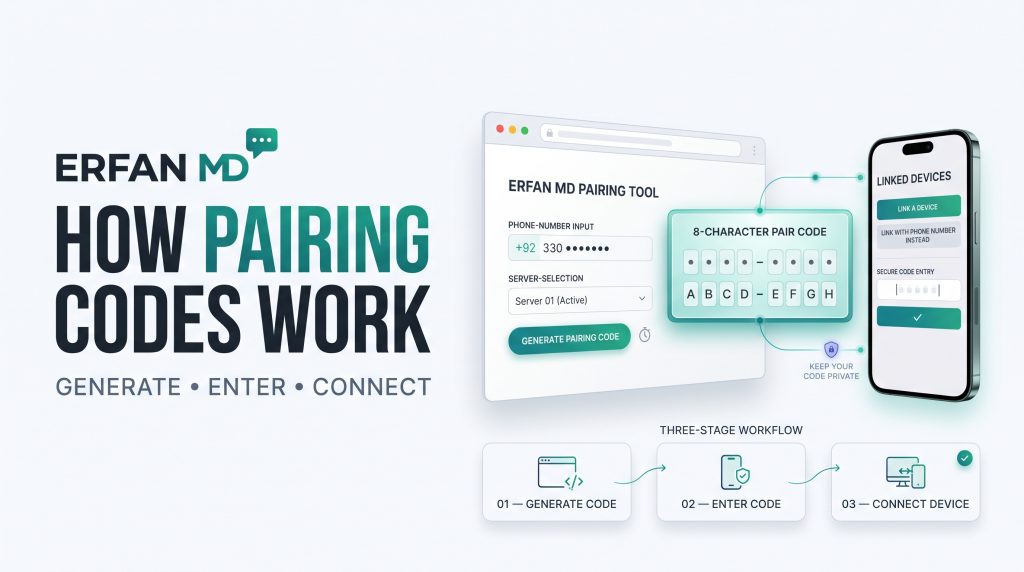
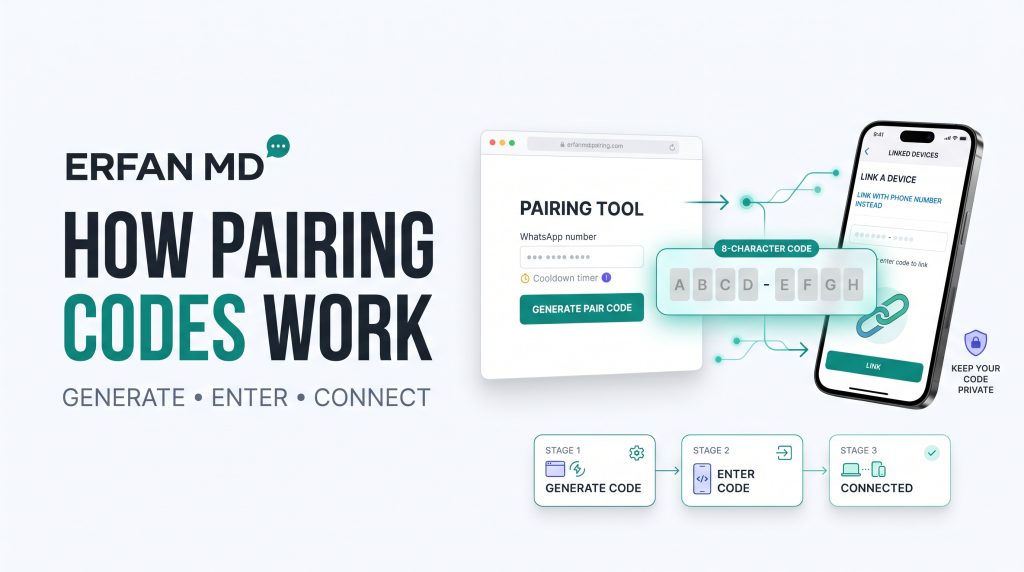
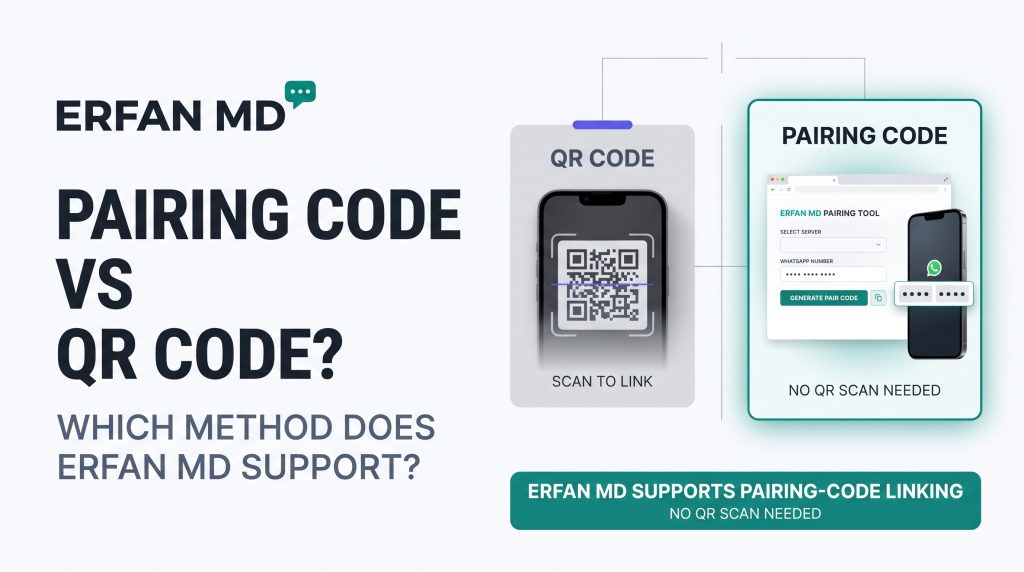
Erfan MD currently supports the WhatsApp pairing-code method through its online pairing interface, not QR-code scanning. Users select a connection server, enter their WhatsApp number with its country code and request a pairing code. They then complete the connection through WhatsApp’s Linked Devices process. You do not need to scan a QR code to use the documented Erfan MD pairing flow.
Pairing Code and QR Code Are Different Formats
A WhatsApp QR code and a WhatsApp pairing code are two different ways of authorising a compatible device connection. Both relate to WhatsApp’s Linked Devices functionality, but they use different types of input.
With a QR-based connection, one device displays a QR code, and the primary WhatsApp phone scans it. With a pairing-code connection, a code is generated and entered through the supported phone-number linking procedure.
How a WhatsApp QR code works
A QR code is a machine-readable image that contains information used during a device-linking process. In WhatsApp’s supported QR linking procedure, the device being connected displays a QR code on its screen. The account owner opens Linked Devices on the primary phone and scans that displayed code.
This method is used with supported WhatsApp companion devices, including compatible desktop and web experiences. The QR image is part of the linking process rather than an ordinary website decoration or a general-purpose QR generator.
How a WhatsApp pairing code works
A pairing code uses a text-based code rather than requiring the primary phone to scan an image. In the Erfan MD workflow, the website requests a code from a selected remote connection server.
After a successful response, the user receives the code and follows the phone-number linking instructions through WhatsApp’s Linked Devices interface.
| Comparison | QR code method | Pairing-code method |
|---|---|---|
| Connection input | Scannable QR image | Generated pairing code |
| Primary action | Scan the displayed QR code | Enter the generated code |
| Camera scanning | Required for the QR procedure | Not required for code entry |
| Erfan MD support | Not offered in the current pairing interface | Supported method |
The two methods should not be confused simply because both are used for WhatsApp device linking. The appropriate method depends on the connection service and the interface it actually provides.
Which Connection Method Does Erfan MD Support Today?
The current Erfan MD homepage identifies its connection method as pairing-code linking. The website explicitly describes the process as pairing code without a QR scan. It also provides a pairing-code form and a connection guide.
This means that users looking for an Erfan MD QR scanner should not expect to find one in the currently published pairing interface.
What appears in the current Erfan MD interface
The website provides a dedicated pairing area with these elements:
- A server-selection control.
- An active-server and capacity status display.
- An international WhatsApp phone-number field.
- A Generate WhatsApp Pairing Code button.
- A 30-second request cooldown.
- A Copy Code option when a code is returned.
There is no QR-scanning control in this documented pairing form. The homepage also explains the connection method through its pairing-code section and describes the workflow as requiring no QR scan.
Start directly from the Erfan MD website and pairing interface. Check the displayed server status and follow the instructions shown on the page.
Does Erfan MD offer both methods?
The currently published Erfan MD connection flow offers the pairing-code method, not a separate QR-generation or QR-scanning option. Therefore, users should choose the pairing-code process when connecting through Erfan MD.
This is a statement about Erfan MD’s current published tool, not a claim that QR linking is unavailable across WhatsApp. WhatsApp itself documents both QR-based linking and phone-number linking for compatible devices.
For the broader distinction, you can consult the official WhatsApp linked-devices information.
What Users Should Prepare Before Pairing
Before beginning, make sure you have access to the WhatsApp account you intend to connect. The process requires the account owner’s participation because the final authorisation must be completed through the account’s own linking interface.
Prepare your account-owning phone
Keep the following available:
- Your own active WhatsApp account.
- The phone associated with that account.
- Access to the WhatsApp Linked Devices section.
- Your full international phone number, including its country calling code.
- An available connection server shown by the Erfan MD interface.
- An internet connection for the website and WhatsApp.
Make sure your phone number is entered in the format requested by the website. The Erfan MD form asks for the international number using digits only, without unnecessary spaces or punctuation.
Keep pairing and verification codes private
A pairing code is sensitive because it is used to authorise a device connection. Never publish it, share it in a group or send it to someone claiming to be an Erfan MD support representative.
Only approve a connection that you initiated and recognise. Review the device information presented by WhatsApp before confirming. The use of a pairing code instead of QR scanning does not remove the need to protect your account.
How to Use the Erfan MD Pairing-Code Method
The documented process is straightforward when the selected connection server is available.
- Open erfan-md.site.
- Go to the WhatsApp bot pairing interface.
- Select a server that reports as available.
- Enter your WhatsApp phone number with its country calling code.
- Select Generate WhatsApp Pairing Code.
- Wait for the selected remote connection server to process the request.
- Copy the returned pairing code when it appears. Observe the displayed 30-second request cooldown.
- Open WhatsApp on the phone associated with your account.
- Go to Linked Devices and choose Link a Device.
- Select Link with phone number instead, where that option is presented.
- Enter the pairing code and complete the confirmation procedure shown by WhatsApp.
- Check the connected device and the bot’s confirmation message.
Generating a code and completing a device connection are separate steps. A successful response from the pairing server does not guarantee that every subsequent connection or bot feature will work.
For additional instructions, read the Erfan MD setup and How It Works guide.
Troubleshooting the Selected Connection Method
If you are using Erfan MD, focus on the pairing-code workflow rather than looking for a QR option that the published interface does not provide.
What to check when pairing does not work
| Problem | What to check |
|---|---|
| No server available | Review the server status and try another server only when it reports available. |
| Phone number rejected | Check the international country code and digits-only format. |
| No pairing code returned | Read the actual server response and check whether the selected endpoint is available. |
| Code not accepted | Verify that you are using the code from the current request in the correct WhatsApp linking interface. |
| Connection not completed | Review WhatsApp Linked Devices and the connection confirmation before requesting another code. |
Do not repeatedly submit requests without checking the previous result. The website, remote pairing server and WhatsApp linking process are separate components, so an issue in one stage does not automatically identify the cause of another.
Do not use unrelated QR generators
An online QR generator is not an alternative to the Erfan MD pairing tool. Creating a QR image from your phone number or a copied pairing code does not convert it into a valid WhatsApp device-linking QR code.
Never enter account credentials, pairing codes or private session information into an unrelated QR-generation website. If a page claims to provide an Erfan MD QR pairing method, verify its connection to the actual project before using it.
Frequently Asked Questions
Does Erfan MD support QR-code pairing?
The currently published Erfan MD pairing interface supports the pairing-code method and explicitly states that no QR scan is needed. It does not present a separate QR-pairing option.
What is the difference between a WhatsApp bot QR code and a pairing code?
A QR-code method uses a scannable image displayed on the device being linked. A pairing-code method uses a generated text code entered through a supported phone-number linking procedure. Both are ways of authorising compatible device connections.
Can I use WhatsApp QR linking without Erfan MD?
WhatsApp provides its own QR-based device-linking instructions for compatible devices. That is separate from the Erfan MD pairing interface and does not mean Erfan MD offers a QR-scanning feature.
Do I need to scan anything when using Erfan MD?
No QR scan is required in the currently documented Erfan MD pairing flow. You request a pairing code online and complete the connection through WhatsApp’s supported phone-number linking interface.
Is a pairing code safer simply because it does not use a QR code?
Not automatically. Both methods can authorise a linked-device connection, so the important security steps are to use a trusted service, confirm the device you are authorising and keep connection credentials private.
About This Guide
Written by Erfan Ahmed, founder of Erfan MD.
Last updated: November 16, 2026. This guide is based on the currently published Erfan MD homepage, pairing instructions and official WhatsApp linked-device information.
For additional product information, visit the Erfan MD Frequently Asked Questions.
What Can Change
The available connection method, pairing interface, server selection, WhatsApp linking screens and device-authorisation instructions may change. This guide should be reviewed whenever Erfan MD introduces a different pairing option or updates its connection process.