How Pairing Codes Work With Erfan MD
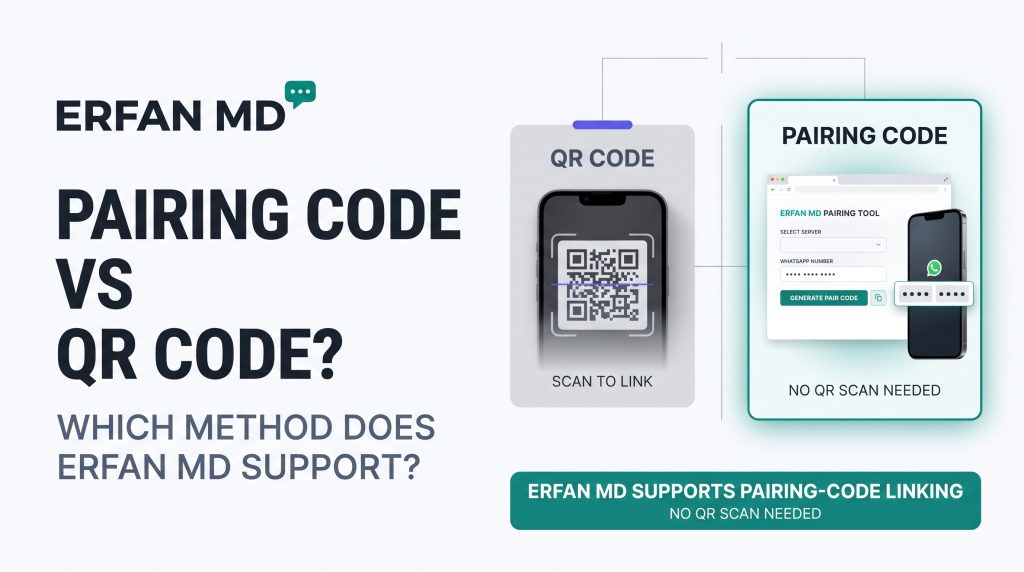
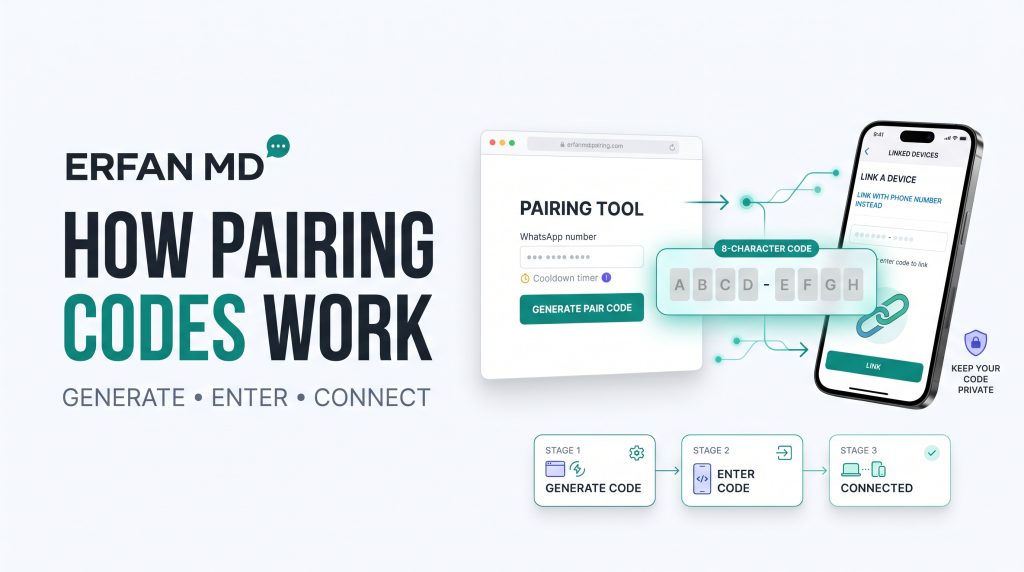
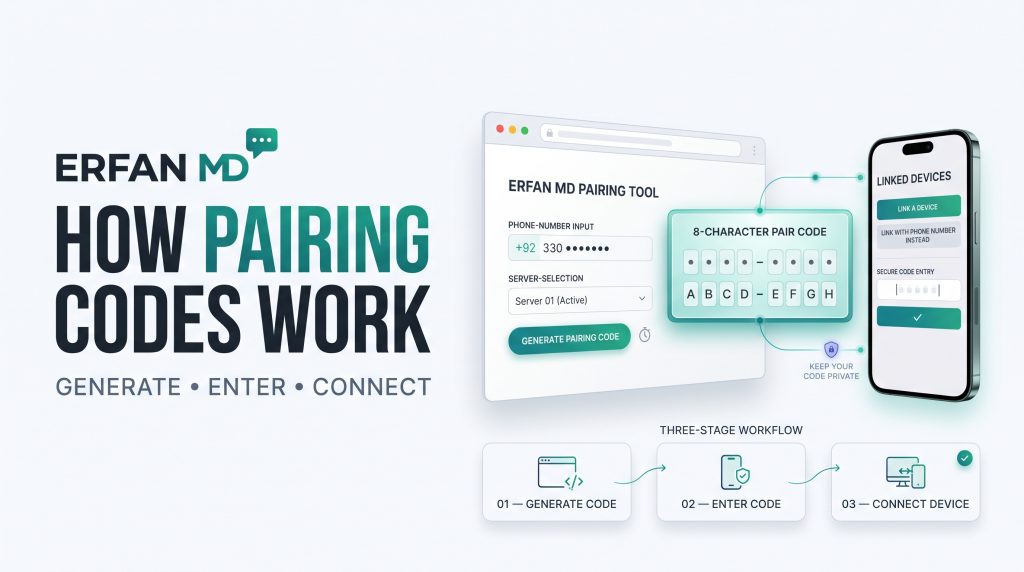
A WhatsApp bot pair code is used to connect an account through a linked-device process. With Erfan MD, the user selects a connection server, enters an international WhatsApp number and requests an eight-character pairing code. The account owner then completes the linking process through WhatsApp’s Linked Devices interface. Generating a code alone does not mean the connection is complete.
What a Pairing Code Is
A WhatsApp pairing code is a code used to authorise a device connection through a supported account-linking process. Erfan MD provides an online pairing interface that sends a request to a selected remote server. That server processes the request, generates a pairing code and returns the result to the website.
The code is part of the connection process between your WhatsApp account and the remote bot service. It is not a general login password, account recovery credential or SMS verification code.
Understanding device linking in simple terms
The Erfan MD WhatsApp bot pair process involves three separate components:
- Erfan MD website: Provides the pairing form, server selection and code-generation interface.
- Remote connection server: Receives the pairing request, processes it through its configured bot software and returns the pairing result.
- Your WhatsApp account: Uses the supported Linked Devices procedure to authorise the connection.
These components perform different jobs. Opening the website does not connect your account, selecting a server does not generate a code, and receiving a code does not prove that the device has been linked.
For this reason, users should treat pairing as a sequence of actions rather than a single button click. Each stage must return the expected result before moving to the next.
A pairing code is not your password or recovery code
An Erfan MD pairing code should not be confused with your WhatsApp password, SMS verification code or phone unlock PIN. These credentials have different purposes and should remain private.
The pairing code is sensitive because it is used in the device-linking procedure. Enter it only through the intended WhatsApp linking interface on an account you own or are authorised to manage.
Erfan MD does not ask users to provide their WhatsApp password or SMS verification code through the pairing form. Never send your pairing code, session file, password or verification code to another person, including someone claiming to provide technical support.
What Happens When the Code Is Requested
The Erfan MD pairing interface is available directly on the official Erfan MD website. Users do not need to begin by downloading an application to access the online pairing form.
The request involves selecting a server, entering the WhatsApp number in the displayed international format and submitting the form. The selected remote server processes the request and returns the generated code when successful.
Understanding the server selection and pairing form
Before requesting a WhatsApp bot pair code, review the server information displayed on the pairing panel. Depending on the returned status information, a server can indicate whether it is ready, full, offline or in an unknown state.
| Server status | Meaning | What to do |
|---|---|---|
| Ready | The status check reports that the server is available. | Proceed with the request, understanding that success is not guaranteed. |
| Full | The configured capacity has been reached. | Choose another available server. |
| Offline | The monitoring process reports that the server is unavailable. | Do not use it for a new request. |
| Unknown | The status check did not return sufficient information. | Do not assume that the server is ready. |
A server showing Ready does not guarantee that the pairing endpoint will successfully process every request. The actual connection service may encounter a separate error or reach its capacity after the status check.
Once you have selected an appropriate server, enter the full WhatsApp phone number with its international country calling code.
The Erfan MD form requests digits only. For example, a Pakistani number should begin with 92, a United States number with 1 and a United Kingdom number with 44. Do not add spaces, brackets, hyphens or an unnecessary plus sign when the field requests digits only.
Requesting a code and understanding the server response
After entering the number, review your information and the applicable service terms. Select Generate WhatsApp Pairing Code to submit the request.
The website sends the selected server and submitted phone number to the configured remote connection service. The remote server runs the bot software, processes the request and returns the generated pairing code through the website interface.
The pairing panel also displays a 30-second waiting interval before another generation request. This is the displayed request cooldown. It should not be confused with the code’s validity period or treated as proof that the code expires after 30 seconds.
When a valid code appears, use the Copy Code option if needed. Do not submit repeated requests without first checking the result of the previous attempt.
Where the Account Owner Enters the Code
After the pairing server returns a code, the account owner must complete the device-linking process through WhatsApp. The code is not entered into an unrelated website, sent to a support representative or shared with another user.
Use WhatsApp’s Linked Devices procedure
WhatsApp provides a phone-number linking method for supported companion-device connections. Its current Help Center documents the following procedure for linking through a primary phone:
- Open WhatsApp on the phone that owns the account.
- On Android, open the menu and select Linked Devices. On iPhone, open the Settings tab and select Linked Devices.
- Choose Link a Device or Link Device, depending on the interface.
- Select Link with phone number instead.
- Follow the displayed authentication instructions if WhatsApp requests biometric verification or your phone-unlock PIN.
- Enter the eight-character device-linking code in the appropriate field when prompted.
- Review the device information shown by WhatsApp and confirm only a connection you recognise and initiated.
WhatsApp also documents phone-number linking through compatible WhatsApp Web and Windows experiences. In that method, the companion device displays a code and the primary phone is used to confirm the connection. The available interface and order of steps depend on the supported linking method.
Read the official WhatsApp guide to linking a device with a phone number for the current instructions.
Keep the pairing code private
Only the account owner or an authorised person should complete the linking process. Do not give the pairing code to someone who offers to connect your account remotely.
Before confirming a device, check its displayed name and connection information. Reject an unfamiliar device or a request that you did not initiate.
Also review the Linked Devices list after the connection. Remove any device that you no longer recognise or need.
After the Connection Step
Successfully requesting a code and completing a WhatsApp device connection are separate results. After the linking procedure, check whether WhatsApp shows the linked device and whether the Erfan MD bot provides its connection confirmation.
Recognising a successful connection
In the documented Erfan MD connection flow, the bot sends a connected confirmation message after successful linking. The message displays the command prefix . and the mode public.
You can then enter the command:
.menu
This command displays the available bot features. It is the starting point for exploring the functions provided by the connected bot configuration.
The connection confirmation is different from the pairing-code response. A code appearing in the website interface means the request returned a code; the subsequent linking and bot confirmation establish that the process has progressed further.
Understanding pending and failed requests
Not every pairing request produces the same result. If the server does not return a code or WhatsApp does not complete the linking process, check the actual message rather than assuming that the problem has one specific cause.
Common causes documented in the Erfan MD setup guide include an incorrectly formatted number, an unavailable or full server, an unresponsive pairing endpoint, a temporary network or hosting issue, and a configuration or compatibility problem.
A missing connection confirmation does not automatically mean that your WhatsApp account has been banned or that your website access has failed. Check the server response, the WhatsApp device list and the actual stage where the process stopped.
For more setup guidance, visit How Erfan MD Works and the Erfan MD Frequently Asked Questions.
When to Stop the Pairing Process
Pairing connects a WhatsApp account to a remote service, so account ownership and device verification matter throughout the process. Do not continue simply because a page or person tells you that a connection must be completed immediately.
Stop if the website, device prompt or server response looks unfamiliar
Stop the process when the website address does not match the intended Erfan MD domain, an unexpected page requests an installation, a device name is unfamiliar or a person asks you to reveal your pairing or verification code.
Do not approve a connection request you did not initiate. If WhatsApp shows a device or location you do not recognise, choose the option not to link that device.
Erfan MD’s own Privacy Policy explains the information collected during pairing and the role of the selected remote server. Read it before submitting a phone number:
Read the Erfan MD Privacy Policy.
Understand the privacy and account-use conditions
According to the published Privacy Policy, the pairing request can include your WhatsApp number, selected server, request time, short-lived generated code and IP address. The selected remote server processes the request and holds the session information needed while the bot remains connected.
The policy also explains that a linked device can receive messages sent to the account so that the bot can detect commands. Erfan MD states that it does not intentionally read, copy, sell or share the content of personal chats, contacts or media, and that message content is processed as needed to run requested commands. Some commands may send text or media to external AI or media providers under their own policies.
The published policy states that pairing request data and logs are kept for no longer than 90 days, except where retention is necessary to investigate abuse or meet a legal obligation. Session data is retained while the bot remains linked and deleted when the user disconnects or requests deletion.
Erfan MD’s pairing tool is free for personal, educational and non-commercial use under its Terms of Service. Commercial use, resale and bulk or business messaging operations are not permitted without written permission.
Erfan MD is an independent project, not an official WhatsApp or Meta service. Its Terms warn that third-party automation and linked-device connections may conflict with WhatsApp’s terms and can lead to account restrictions or suspension. No ban-free experience can be guaranteed.
Review the Erfan MD Terms of Service and WhatsApp Terms of Service before proceeding.
Frequently Asked Questions
What is an Erfan MD WhatsApp bot pair code?
It is an eight-character code generated by the selected remote connection server after a pairing request. The account owner uses it through the supported WhatsApp Linked Devices procedure to authorise the connection.
Is free WhatsApp bot pairing available through Erfan MD?
Yes. Erfan MD’s published Terms provide the pairing tool free of charge for personal, educational and non-commercial use. Commercial use and business messaging operations require written permission under the current terms.
Does the 30-second cooldown mean the pairing code expires after 30 seconds?
No. The homepage displays a 30-second waiting interval before another generation request. This is a request cooldown, not a published code-expiry duration.
Can I share my pairing code with Erfan MD support?
No. Keep the pairing code private and never send it to support or another person. Describe the problem by explaining the stage where the connection stopped, without providing account-linking credentials.
What happens after WhatsApp accepts the code?
Check the Linked Devices list and the Erfan MD connection confirmation. In the documented flow, the confirmation shows the command prefix “.” and public mode. You can enter .menu to view available bot features.
Why can a pairing request fail even when a server says Ready?
Ready reflects the result of a server-status check at that time. The pairing endpoint can still become unavailable, reach capacity or return a separate error when processing the request.
About This Guide
Written by Erfan Ahmed, founder of Erfan MD.
Last updated: November 16, 2026. This guide is based on the published Erfan MD pairing instructions, Terms of Service, Privacy Policy and WhatsApp Help Center guidance.
For product questions, visit the Erfan MD FAQ or use the contact information published on the website.
What Can Change
Server availability, pairing endpoints, code-generation responses, cooldown instructions, WhatsApp linking screens and bot versions can change. Follow the current website and WhatsApp instructions whenever the pairing process or its security requirements are updated.