How to Remove WhatsApp Bot Linked Device Access and Disconnect Erfan MD
By Erfan Ahmed | Last reviewed and updated: November 24, 2026.
You can disconnect Erfan MD by removing its linked session directly from your primary WhatsApp phone. Open Linked Devices, select the session, and tap Log out. The live Erfan MD setup pages direct users to this WhatsApp control rather than a separate in-product disconnect command. Erfan MD is an independent third-party WhatsApp bot project.
Key Takeaways
- Remove an Erfan MD connection through WhatsApp’s Linked Devices menu, not by deleting a conversation.
- Android users open More options > Linked devices. iPhone users open Settings > Linked Devices.
- You do not need to access the Erfan MD website to revoke an existing WhatsApp linked session.
- Check every linked device, not just the session you associate with the bot.
- Never share pairing codes, WhatsApp registration codes, passwords, or other account credentials.
Product-Side Stop vs. WhatsApp Account-Side Unlinking
Stopping bot activity and removing the WhatsApp connection are two different actions. To end Erfan MD’s access through a linked session, remove that session from WhatsApp on your primary phone. The website provides connection information, but WhatsApp controls the account’s Linked Devices settings.
Does Erfan MD have an in-product disconnect control?
The live Erfan MD homepage includes an Unlink any time instruction that directs users to remove the bot through WhatsApp’s Linked Devices screen. The reviewed pairing interface does not expose a separate disconnect button or a documented bot command for terminating the linked session.
This distinction matters because changing a bot setting is not the same as revoking account access. For example, the .mode command changes the bot’s reply permissions: private mode limits replies to the account owner, while public mode allows replies to anyone. Neither mode should be treated as a logout operation.
You can review the Erfan MD connection process to understand how the website, pairing tool, and WhatsApp bot work together.
Why removing the session from your primary WhatsApp phone is the authoritative control
Erfan MD uses a remote server that maintains the WhatsApp-linked session needed to process bot commands. WhatsApp’s Linked Devices interface lets the account holder inspect and remove that connection directly. Removing the selected session ends the WhatsApp link without requiring access to the remote server or pairing website.
This is also useful when you cannot access the computer or browser associated with a session. You can revoke its connection from your own primary phone instead of trying to locate the other device.
WhatsApp explains the process in its Help Center guide to unlinking a device.
Step-by-Step: Remove a WhatsApp Bot Linked Device on Android and iOS
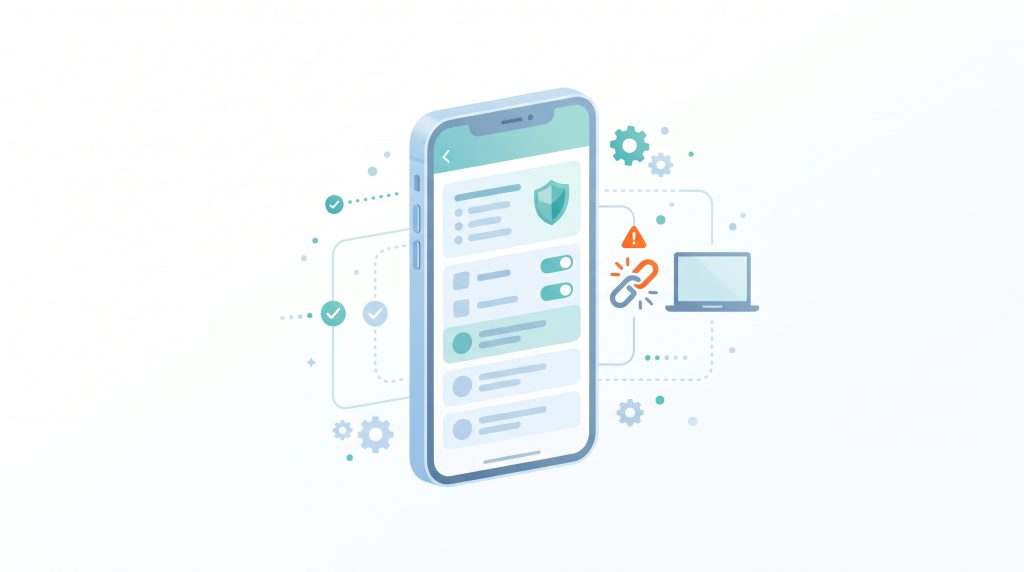
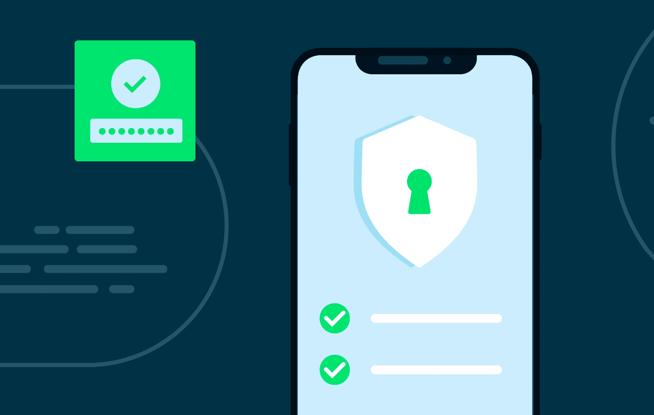
Use the primary phone where your WhatsApp account is registered to remove a linked bot session. The Android and iPhone menus have different entry points, but the final action is the same: open Linked Devices, select the unwanted session, and choose Log out.
Exact WhatsApp navigation path on Android and iPhone
Follow the instructions for your phone. You do not need to open the Erfan MD website, generate another pairing code, or install another application to remove an existing linked session.
- Open WhatsApp: Use the primary phone associated with the account you connected to the bot. This ensures you are managing the correct account.
- Open Linked Devices: On Android, tap More options (three vertical dots) and select Linked devices. On iPhone, tap Settings and select Linked Devices.
- Review the device list: Look through the listed computers, browsers, tablets, and other linked sessions. Identify the session you want to remove.
- Select the session: Tap the relevant device entry to open its available session controls.
- Tap Log out: Select Log out to end that linked session.
- Check the device list again: Return to Linked Devices and verify that the removed session no longer appears.
Android vs. iOS unlink step-by-step verification table
Use this comparison when removing Erfan MD or another unfamiliar WhatsApp connection. The navigation differs between Android and iOS, but both routes use WhatsApp’s own device-management screen. The final audit should confirm that the selected session is no longer listed.
| Verification point | Android | iPhone (iOS) |
|---|---|---|
| Starting point | Open WhatsApp on your primary phone. | Open WhatsApp on your primary phone. |
| Open the menu | More options (three vertical dots). | Settings tab. |
| Navigation path | More options > Linked devices. | Settings > Linked Devices. |
| Select the session | Tap the device or browser entry you want to remove. | Tap the device or browser entry you want to remove. |
| Removal action | Tap Log out. | Tap Log out. |
| Visual confirmation | Return to the list and verify that the selected entry is absent. | Return to the list and verify that the selected entry is absent. |
| Post-removal audit | Review the remaining sessions and remove any unfamiliar entries. | Review the remaining sessions and remove any unfamiliar entries. |
The visual confirmation described here is a practical verification check, not a guarantee of a particular confirmation popup or message. WhatsApp’s interface and labels may differ with app language and interface updates.
How to identify the Erfan MD session or an unfamiliar device
Do not assume that WhatsApp will always display the product name Erfan MD as the device label. The entry may instead identify the browser, computer, or device associated with the linked connection.
Compare the available device information and last-active details, where displayed, with your own usage. Consider when you generated the Erfan MD pairing code and which device you were using at that time.
Use these checks before removing an entry:
- Recognize the computer, tablet, browser, or device associated with the entry.
- Compare its activity information with the time you connected your account.
- Check whether you previously used WhatsApp Web or WhatsApp Desktop on that same device.
- Remove any session you cannot identify or no longer trust.
Do not leave a suspicious entry connected simply because its name does not contain Erfan MD. The device information and your own account activity are more useful than the product name alone.
Post-Removal Security Checks
Logging out is the main step, but you should also review the remaining connections and check whether the bot is still responding. Confirm that the selected device disappeared from Linked Devices, inspect every remaining entry, and strengthen account security if you noticed an unfamiliar connection.
Confirm the session disappeared and bot replies stopped
After logging out, return to the Linked Devices screen. The selected session should no longer appear in the active device list. Review the remaining entries to make sure you have not left another unfamiliar browser, computer, or companion device connected.
Next, consider the bot’s behavior. Once the WhatsApp session has been removed, the remote bot connection can no longer use that linked session to process new commands. You should not receive new bot responses through the disconnected session.
Remember that a WhatsApp chat conversation can remain visible after you disconnect a device. The conversation itself is not the same thing as an active linked session.
For a separate explanation of the connection confirmation and how to recognize a functioning bot session, read how to confirm an Erfan MD connection after pairing.
What to do if you suspect unauthorized account access
If you discover a device you did not connect, remove it immediately from Linked Devices. Then review all remaining sessions, keep WhatsApp notifications enabled, and check your account-security settings. If you have lost access to your account, follow WhatsApp’s recovery process before relying on additional security settings.
- Log out the unfamiliar session: Use your primary phone to remove the suspicious entry.
- Check every remaining session: Remove any device that you cannot identify or trust.
- Protect your registration credentials: Never provide a WhatsApp registration code to anyone who contacts you.
- Enable additional account protection: Configure WhatsApp Two-Step Verification and secure the associated recovery email, where available.
- Recover access if necessary: Follow the account-recovery instructions provided by WhatsApp if another person has taken control of your account or you can no longer access it.
WhatsApp’s account security guidance explains its available security measures and why recovery must come before additional protection when account access has already been lost.
Preventing Unwanted WhatsApp Re-Connections
After removing an unwanted linked device, prevent another unauthorized connection by protecting your pairing and registration credentials. Only connect accounts you own, enter codes yourself, review unexpected linking requests, and enable additional account security. These habits reduce the chance of someone linking another device without your knowledge.
Never share pairing codes or six-digit WhatsApp registration codes
Erfan MD’s pairing process generates an eight-character pairing code, which you enter yourself in WhatsApp’s Link with phone number flow. A WhatsApp registration or verification code is a separate credential. Do not confuse these codes or disclose either one to another person.
Follow these rules:
- Generate a pairing code only when you intend to connect your own WhatsApp account.
- Enter the pairing code yourself in WhatsApp.
- Never send a pairing code to another person claiming to offer technical support.
- Never disclose the six-digit WhatsApp registration or verification code.
- Never share your WhatsApp password or session credentials.
- Stop if someone asks you to approve an unexpected device-linking request.
The pairing tool does not require your WhatsApp password. You should never provide that password or your separate registration code to complete the pairing process.
WhatsApp also warns that linking accounts through unsupported third-party applications or websites can expose accounts to security risks and potential restrictions. Review its explanation of WhatsApp Linked Devices and account safety before connecting another service.
Enable WhatsApp Two-Step Verification
Two-Step Verification provides an additional layer of account protection. It helps protect your account when someone attempts to register your number elsewhere. It is separate from Linked Devices management, so enable it in addition to removing sessions you do not recognize.
To configure the setting:
- Open WhatsApp on your primary phone.
- On Android, open More options and then Settings. On iPhone, open Settings.
- Open Account and select Two-step verification.
- Follow the instructions shown by WhatsApp to enable the additional authentication method.
- Add and secure a recovery email if the interface offers that option.
- Keep the password or other security credentials private and accessible only to you.
WhatsApp is updating its Two-Step Verification authentication options, so follow the instructions shown in your own app instead of assuming that every account displays identical PIN or password controls.
One important distinction: Two-Step Verification does not automatically remove an already-connected unauthorized device. Remove suspicious linked sessions separately, and recover your account first if you have lost access.
Limits and What Can Change
This procedure removes the selected WhatsApp linked session; it does not delete your WhatsApp account or erase every copy of information previously accessed through another device. WhatsApp controls the navigation labels and linking behavior, while Erfan MD operates its separate remote bot service and pairing interface.
Keep these limitations in mind:
- Menu labels: Android and iPhone menu names can change with WhatsApp updates, localization, or interface changes.
- Device naming: A connected session may be identified by its browser or device details rather than the name of the bot service.
- Chat history: Logging out a linked session is not the same as deleting your conversation or permanently erasing information previously copied elsewhere.
- Other sessions: Removing one device does not mean every other linked device has also been removed. Review the complete list.
- Remote service: The pairing website, remote server, and WhatsApp account have separate functions. A change or interruption in one does not automatically establish the status of the others.
The Erfan MD Privacy Policy explains the information associated with pairing requests and bot sessions, including how session data is handled when you disconnect or request deletion.
Frequently Asked Questions
These answers cover the questions that commonly follow a WhatsApp bot disconnection. The key distinction is between removing account access, deleting conversations, stopping an automated service, and requesting deletion of information held by the service.
How do I disconnect Erfan MD from my WhatsApp account?
Open WhatsApp on your primary phone and select Linked Devices. Choose the session associated with your bot connection and tap Log out. Verify that the entry is no longer listed.
Does logging out from Linked Devices delete my WhatsApp chats?
No. Logging out removes the selected linked session rather than deleting your WhatsApp account or its conversations from your primary phone. Do not treat this action as a remote wipe of information that may already have been saved or copied on another device.
Can Erfan MD reconnect automatically after I log it out?
Removing the linked session ends that connection. The documented Erfan MD setup requires a new pairing process and confirmation inside WhatsApp to establish another connection. Do not approve an unexpected device-linking request or share a new pairing code with anyone.
What if I see a linked device I do not recognize in WhatsApp?
Select the unfamiliar device and tap Log out from your primary phone. Then inspect the rest of the Linked Devices list, check your registration credentials, and enable additional account protection. If you have lost access to your WhatsApp account, follow WhatsApp’s recovery instructions.
Do I need to contact Erfan MD support to end my session?
No. You can remove the active WhatsApp session directly from Linked Devices without contacting Erfan MD support. For a separate request concerning personal information or session data, consult the Erfan MD Privacy Policy and use its listed data-request contact route.
What if WhatsApp does not display the name Erfan MD?
Do not rely exclusively on the displayed product name. Review the device or browser information and its activity details, where available, and compare them with your own pairing activity. When you cannot identify or trust a session, remove it from your account.
Next Steps
Once the unwanted session has been removed, make account security part of your normal WhatsApp routine. The following resources explain the connection process, help you recognize session problems, and show where to review the information associated with the service.
- Read the WhatsApp bot connection confirmation guide to understand successful pairing indicators.
- Review Erfan MD public and private modes to understand bot reply permissions.
- Consult the pairing-code troubleshooting guide when a future connection attempt does not work.
- Read the Erfan MD frequently asked questions for additional product guidance.
- Review the Privacy Policy before connecting another WhatsApp account.
About This Guide
This guide is written by Erfan Ahmed, founder of Erfan MD, with a software development background and based in Pakistan. For general project support, contact company@explorefrag.com. The instructions were reviewed against the WhatsApp Help Center and the live Erfan MD website on November 24, 2026.