By Erfan Ahmed | Last reviewed and updated: 23 November 2026.
Erfan MD’s verified command examples include .sticker, but they do not establish a working background-removal, blur, or photo-filter command. Use .menu to inspect the bot’s image and sticker categories, and check the actual output before relying on an image-processing feature.
Erfan MD is an independent third-party WhatsApp bot project, separate from WhatsApp’s built-in photo editor.
- Verified command:
.stickerappears in Erfan MD’s published command examples. - Background removal: Do not treat a sticker command as proof of transparent-background editing.
- Blur and filters: WhatsApp documents these as native photo-editing options, independently of Erfan MD.
- Image quality: Compare original and returned files before making resolution, compression, or processing-speed claims.
Verified Erfan MD image-editing commands
The supplied Erfan MD product facts identify .sticker as an image-related command example and describe over 800 commands across several categories, including image and sticker tools. This establishes a sticker-related command, not a promise of automatic background removal, photo blur, filters, transparent PNG export, or specific output quality.
Background removal, blur, and verified photo effects
Background removal and blur are different image operations. Background removal separates a subject from its surroundings, while blur reduces detail in selected areas or across an entire picture.
A sticker command should not automatically be described as a background remover. Before advertising any editing capability, inspect the command instructions and verify that the bot actually returns the requested result.
WhatsApp also has its own photo editor. Its Help Center describes photo filters, drawing tools, stickers, and blur controls. These native editing options should not be attributed to Erfan MD.
Read the WhatsApp guide to editing photos and videos to distinguish built-in editing functions from commands supplied by an independent bot.
Commands marked available, limited, or unavailable in live tests
A reliable command-status report must distinguish an actual successful result from a menu listing or an unsuccessful request. A command is available when a live test produces its intended output, limited when the returned result has a demonstrated restriction, and unavailable only when a reliable live check establishes that outcome.
| Capability or command | Verified position | Evidence required before making a feature claim |
|---|---|---|
.sticker | Listed in Erfan MD’s verified command examples | Capture the actual input method and returned sticker file |
| Background removal | No background-removal result is established by the supplied product facts | Run an actual removal test and inspect the background transparency |
| Image blur | No Erfan MD blur result is established by the supplied product facts | Check whether the bot provides a blur operation and inspect its output |
| Photo filters | WhatsApp native editing is documented separately from bot commands | Test the bot independently before attributing a filter to Erfan MD |
Use .menu to display command categories. Read the instructions provided for the relevant image or sticker category instead of guessing command names, prefixes, or extra parameters.
How to submit an image for editing or testing
Start by inspecting the live bot’s command menu rather than sending an image with an assumed editing instruction. The correct submission method depends on the command’s actual input requirements. A controlled test with an ordinary image lets you distinguish a working feature from a message that the bot cannot process.
Captioning versus replying to a sent image
Captioning and replying are different message actions. A caption accompanies an image when you send it, while a reply references an image message that already exists in the conversation.
Do not assume that Erfan MD accepts both methods. Follow the input instructions displayed for the actual command. Record whether the successful test used an image caption, a separate command message, or a reply to the original image.
A practical test sequence is:
- Open your connected Erfan MD conversation. This ensures you are testing the bot account linked to your WhatsApp session.
- Send
.menu. The menu displays the available command categories and gives you a starting point for finding the relevant tool. - Inspect the image and sticker category. Read the command instructions instead of assuming that a familiar command name supports additional editing operations.
- Choose a non-sensitive test photo. Use an image you own or have permission to process, rather than an identity document or private photograph.
- Follow the displayed submission method. Record whether the command uses a caption, a separate message, or a reply.
- Save the returned file separately. Compare its format, dimensions, visual quality, and file size with the original.
Sending images as HD or as a document
WhatsApp media settings affect how an image is shared, but they do not establish what an independent bot accepts or how its processing changes the file. HD quality can improve the clarity of a photo sent through WhatsApp, while document attachment provides a separate file-sharing route.
For ordinary photo sharing, WhatsApp provides a quality choice between Standard quality and HD quality where supported. Its Help Center explains that HD images use more data and that network conditions can still affect media quality.
For a controlled image-tool test:
- Record whether the original image was sent using the standard photo attachment route or HD quality.
- Test document attachment only when the command’s instructions permit that input method.
- Keep the original file so that you can compare the returned dimensions and file properties.
- Do not assume that an HD upload guarantees an uncompressed output from the bot.
See WhatsApp’s photo and video editing instructions for its documented media controls. The quality setting belongs to WhatsApp’s message-sharing process, not an automatic Erfan MD image-quality guarantee.
Live output quality comparison and real limitations
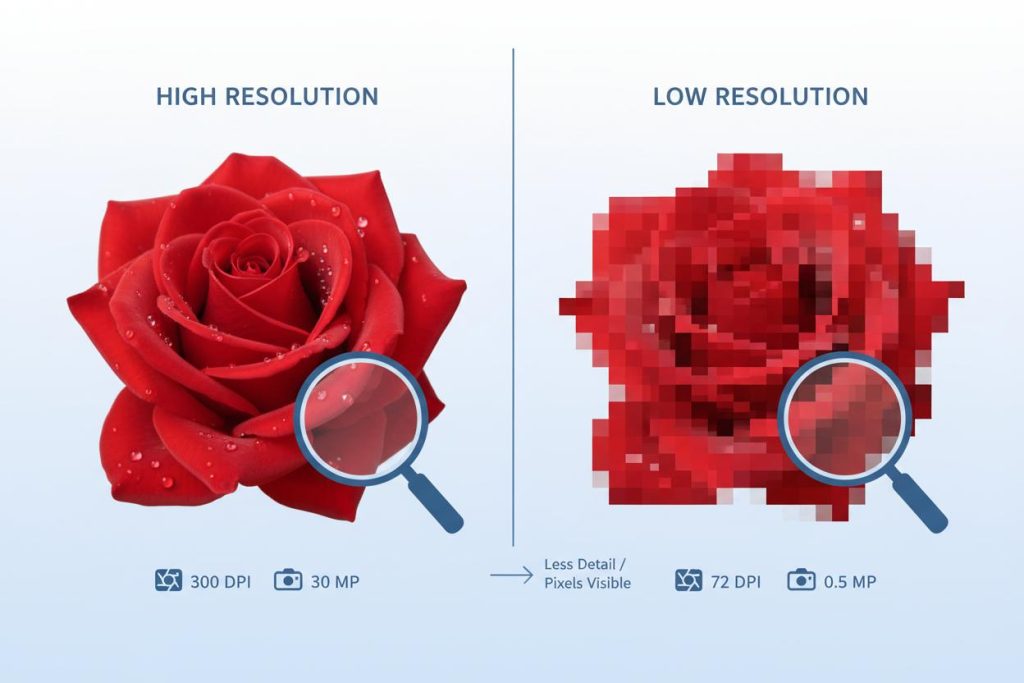
Image quality should be measured using the original file and the file returned by the bot. Compare pixel dimensions, file format, file size, visible edges, and processing time separately. A visually acceptable preview does not prove that a downloaded image retains its original resolution or transparency.
Simple backgrounds versus complex hair and object edges
Background removal needs a different quality assessment from ordinary sticker conversion. A subject against a plain background is easier to inspect than hair, fur, transparent objects, or objects with complicated outlines.
For any live background-removal test, inspect these areas:
- Subject edges: Look for missing hair strands, rough outlines, and unwanted background fragments.
- Fine details: Check spaces between fingers, accessories, leaves, and other narrow details.
- Transparency: Establish whether the returned image actually has a transparent background rather than a solid white or coloured background.
- Subject preservation: Compare the original subject with the processed result for unwanted changes or missing details.
Do not describe an image operation as high-quality background removal simply because the subject remains visible. The edges and transparency are part of the result.
Live Image-Tool Benchmark Table
A useful benchmark records the same evidence for every tested operation. The following table defines what the owner should capture from an actual Erfan MD test. It is a measurement protocol, not a set of fabricated performance results.
| Tool or command | Input format | Output resolution retained versus compressed | Edge or effect quality notes | Average processing time | Status |
|---|---|---|---|---|---|
| Background removal | Record the original file format and actual submission method | Compare source and returned pixel dimensions | Inspect hair, object outlines, background remnants, and transparency | Time successful runs and document the test method | Owner live test required |
| Blur | Record the original file format and actual submission method | Compare source and returned pixel dimensions | Inspect the affected area, blur consistency, and unwanted changes | Time successful runs and document the test method | Owner live test required |
| Photo filters | Record the original file format and actual submission method | Compare source and returned pixel dimensions | Record the actual visual effect and any detail loss | Time successful runs and document the test method | Owner live test required |
.sticker | Follow the live command instructions and record the accepted input | Compare source and returned file dimensions when applicable | Record the actual sticker result and visible artifacts | Time the successful processing operation | Command listed; benchmark required |
For a meaningful comparison, use the same source photograph when testing different operations, where the commands support the same input. Save the original and each returned file separately so that visual differences can be checked without relying on WhatsApp message previews.
File-size caps, resolution drops, and processing delays
File-size restrictions, output dimensions, and processing delays are separate measurements. Do not assign a numerical limit to an Erfan MD image command unless the live service provides that limit or an actual test establishes it. Also distinguish the time spent uploading an image from the time spent processing it.
Record these details for each successful test:
- Original file size and pixel dimensions.
- Attachment method and accepted input format.
- Returned file size, format, and pixel dimensions.
- Whether the output is a transparent image or a solid-background image.
- Elapsed time between the completed input and returned result.
- Any visible quality loss, incomplete processing, or error response.
These observations make it possible to explain actual limitations without turning one successful test into a general performance guarantee.
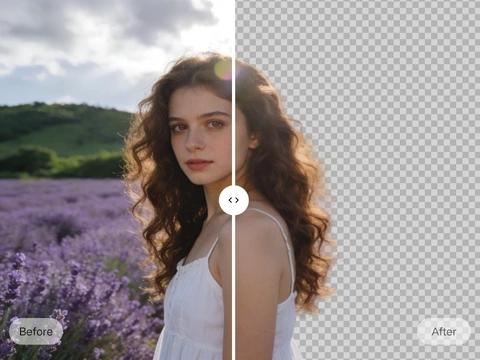
Image privacy and external processing disclosure
Before sending a photograph to an independent bot, consider where the WhatsApp session connects and what information the image may contain. Erfan MD operates a remote server linked to the WhatsApp account, allowing the bot to read and respond to commands during an active session. Review the Privacy Policy before submitting personal material.
What happens to uploaded photos
Erfan MD’s remote server handles the connected WhatsApp bot session. That fact should not be turned into a blanket claim that uploaded images are never accessed, stored, transmitted, processed, or logged.
For details about session and server data processing or logging, consult the Erfan MD Privacy Policy. Do not describe a specific external image API, deletion period, storage location, or zero-access arrangement unless the applicable privacy documentation establishes it.
Also remember that an account linked to a remote service can receive messages through its linked-device session. Only connect an account you own and trust the service with the access involved.
Why you should never submit private IDs or sensitive personal photos
Identity documents and private photographs can expose information that cannot easily be changed if it is mishandled. Avoid using passport scans, national identity cards, financial documents, medical records, private correspondence, or other sensitive images as bot test files.
Use an ordinary photograph that you own or have permission to process. Remove unnecessary personal information before testing and avoid using images that reveal private details in the background.
WhatsApp warns that unofficial third-party applications are unsupported and may expose accounts to security risks or restrictions. Read its Help Center guidance about unofficial applications before linking an account to a third-party service.
Limits and what can change
This guide separates WhatsApp’s native photo-editing features from Erfan MD bot commands. It does not establish a background-removal or blur benchmark for Erfan MD. Bot functionality depends on its remote service, while WhatsApp controls its own media handling, device features, and account restrictions.
Keep these distinctions in mind:
| Area | What it means for your test |
|---|---|
| WhatsApp native editor | Its editing controls are separate from Erfan MD commands. |
| Erfan MD command menu | Use the displayed instructions to identify available bot operations. |
| Remote bot server | Service availability depends on the remote service and its hosting infrastructure. |
| Media handling | WhatsApp’s attachment and quality controls can affect how the source image is delivered. |
| Account restrictions | WhatsApp alone controls restrictions on WhatsApp accounts. |
Commands, menus, and remote processing behaviour can change following service or platform updates. Recheck the live bot instructions before following an older example, and do not treat the output of one device or test image as a guarantee for every image.
Frequently asked questions
These answers distinguish Erfan MD commands from WhatsApp’s built-in photo editor. Use the live command menu for bot instructions and inspect the returned image file before relying on a particular editing result.
How do I remove a photo background using Erfan MD on WhatsApp?
Start by sending .menu to the connected bot and inspecting its image and sticker categories. The verified command examples include .sticker, but that command alone does not establish background-removal functionality. Use a removal operation only when the live bot provides the corresponding instructions.
Does the background remover return a transparent PNG?
Do not assume that an edited photograph has a transparent background or is saved as PNG. Check the downloaded file format and whether it contains actual transparency. A photograph with a white background is not necessarily a transparent image.
Why does my edited photo look slightly compressed on WhatsApp?
WhatsApp can reduce image quality during media sharing, and its HD setting provides a higher-quality sharing option where supported. Network conditions can also affect media quality. Compare the downloaded file with your original rather than judging quality only from the chat preview.
Is it safe to edit personal documents or ID photos through a bot?
Avoid sending identity documents, financial records, medical records, or private photographs to a third-party bot. Erfan MD is an independent project that operates a remote server for its connected bot session. Read its Privacy Policy and use a non-sensitive test image instead.
What should I do if the blur or remove-background command times out?
Check your internet connection, inspect .menu for the relevant command instructions, and verify that your image follows the displayed input method. Check whether the remote service is responding before making another attempt. Do not interpret a timeout as proof that a command has been permanently removed.
Can I use WhatsApp’s own blur and filter tools instead?
Yes. WhatsApp documents native photo filters and blur controls in its photo editor. These tools operate independently of Erfan MD, so using them does not establish that the bot supports the same editing operations.
Next steps
Choose the next action according to what you actually need to accomplish. Inspect the available bot commands before attempting a sticker operation, use WhatsApp’s native editor for its documented photo controls, and review privacy guidance before linking an account or sharing an image.
- Explore the Erfan MD feature categories to understand the available command groups.
- Read how Erfan MD works before using the connected WhatsApp bot.
- Review the Erfan MD guides for related command and setup instructions.
- Read the Privacy Policy before submitting personal material.
- Visit the Erfan MD FAQ for additional product and account questions.
About this guide
This guide was written by Erfan Ahmed, founder of Erfan MD, who has a software development background and is based in Pakistan. For product questions or support, contact company@explorefrag.com. Last reviewed and updated: 23 November 2026.